Printers in this guide
Best for an iPad with Shopify or Lightspeed
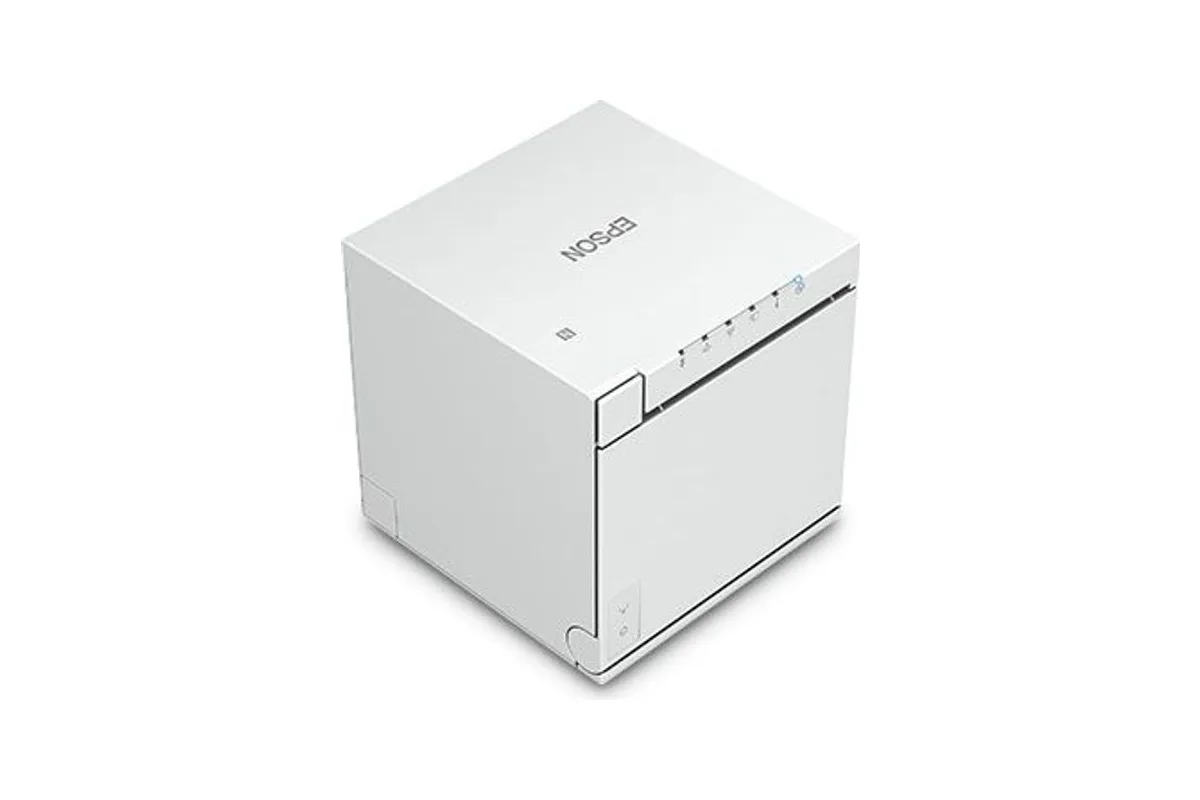
Epson OmniLink TM-m30III
How do you set up a receipt printer?
Pick the connection your POS app supports, connect the printer, then add it in the app’s hardware settings and print a test. For a fixed counter, Ethernet is the safe choice: plug a printer such as the Star TSP143IV ($319 at Square in November 2026) into your router, and every POS device on the network can share it. Bluetooth is for mobile checkout only; Square says it doesn’t recommend Bluetooth printers “due to poor performance.”
The basic setup for a network printer:
- Load the paper. Most countertop printers take 3-1/8 in. (80 mm) thermal rolls. See the receipt paper guide.
- Connect the printer to your router or switch with an Ethernet cable. Square says its Ethernet printers must connect “to a switch or same network router as the Point of Sale.”
- Give the printer a fixed address. Lightspeed recommends a DHCP reservation or static IP so the printer’s address “remains constant and unique on your network.”
- Put the POS device on the same network. Square: “If they are on different networks, the connection will not be successful.”
- On an iPad, allow local network access for the POS app (Settings > Privacy & Security > Local Network). Square says it “needs access to your local network” on iOS.
- Add the printer in the POS app (in Square, Settings > Hardware > Printers) and print a test receipt.
- Plug in the cash drawer, if you have one, to the printer’s drawer port (below).
USB vs Ethernet vs Bluetooth receipt printer: which should I get?
Ethernet for a fixed counter, USB for one register through a hub, and Bluetooth only for mobile checkout. That’s what the POS companies’ own help pages say: Square and Lightspeed both steer away from Bluetooth for shared or busy setups, and Lightspeed says Bluetooth and Wi-Fi “are not recommended for kitchen use due to the potential for wireless interference.”
| Connection | Shared by several POS devices? | Range | What the POS companies say | Best for |
|---|---|---|---|---|
| Ethernet (LAN) | Yes | Cable to router or switch | Lightspeed recommends LAN; Square needs the printer on the same network as the POS. Square: no Ethernet with offline payments. | Fixed counters, kitchens, more than one register |
| Wi-Fi | Yes | Within 45 m (150 ft) of the router (Lightspeed) | Not recommended in kitchens (Lightspeed) | Counters where you can’t run a cable |
| USB | No, one device | Cable | Shopify: “most reliable” through the Shopify POS Hub. Square: through the hub on Square Stand, Register or Terminal, not plugged into an iPad. | A single register |
| Bluetooth | No, one device at a time | Within 10 m (33 ft) of the iPad (Lightspeed) | Square doesn’t recommend it; not for kitchens (Lightspeed) | Mobile checkout, food trucks, pop-ups |
One catch with Ethernet on Square: “You won’t be able to use an Ethernet connection with offline payments.” If you take card payments offline, ask Square which connection suits you before you buy.
What the two printers in this guide offer:
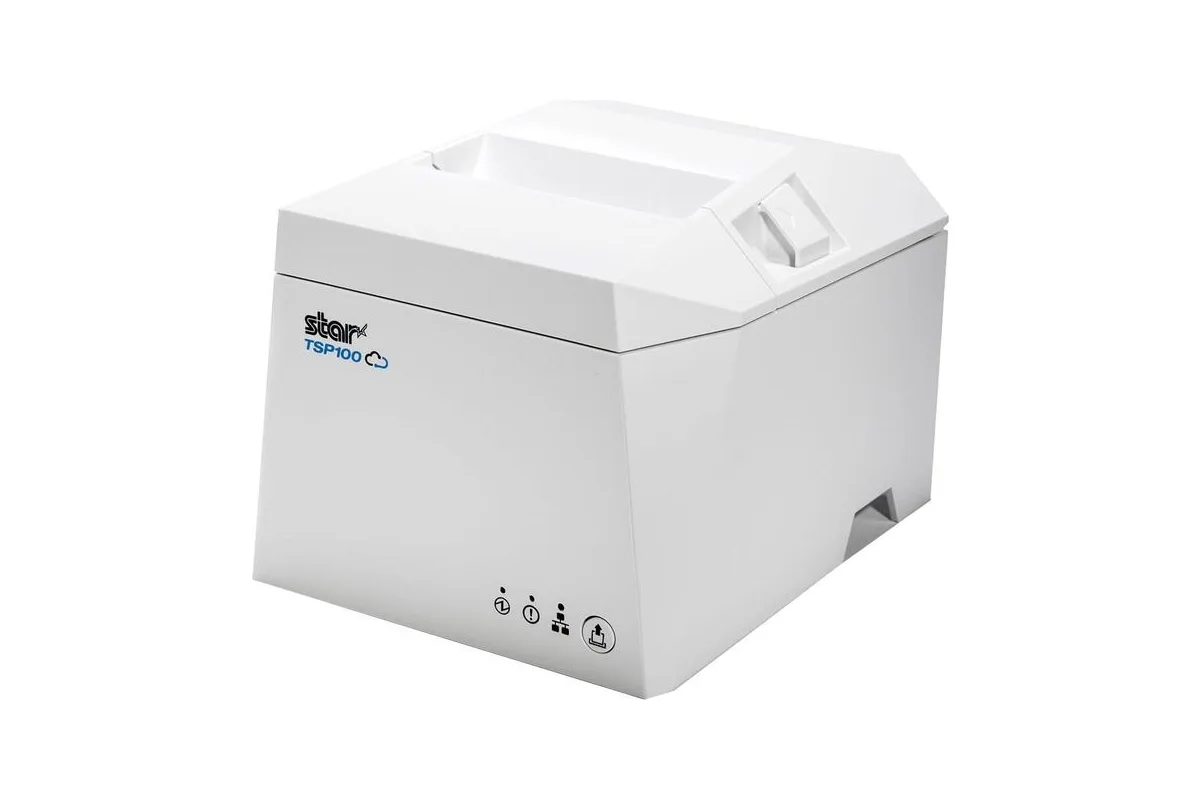
- Star TSP143IV: the UE model ($319 at Square) has USB-C, USB-A and Ethernet. The UEWB (X4) model ($289 at Shopify) adds dual-band Wi-Fi and Bluetooth.
- Epson TM-m30III: every model has USB-C, USB-B and Ethernet; the Wi-Fi + Bluetooth model ($289 at Shopify, $299 at Lightspeed) adds both. On Shopify, its Wi-Fi setup can only be done from an Android device.
If you need a printer for a truck or market stall, see the best portable receipt printers.
How do I connect a receipt printer to a cash drawer?
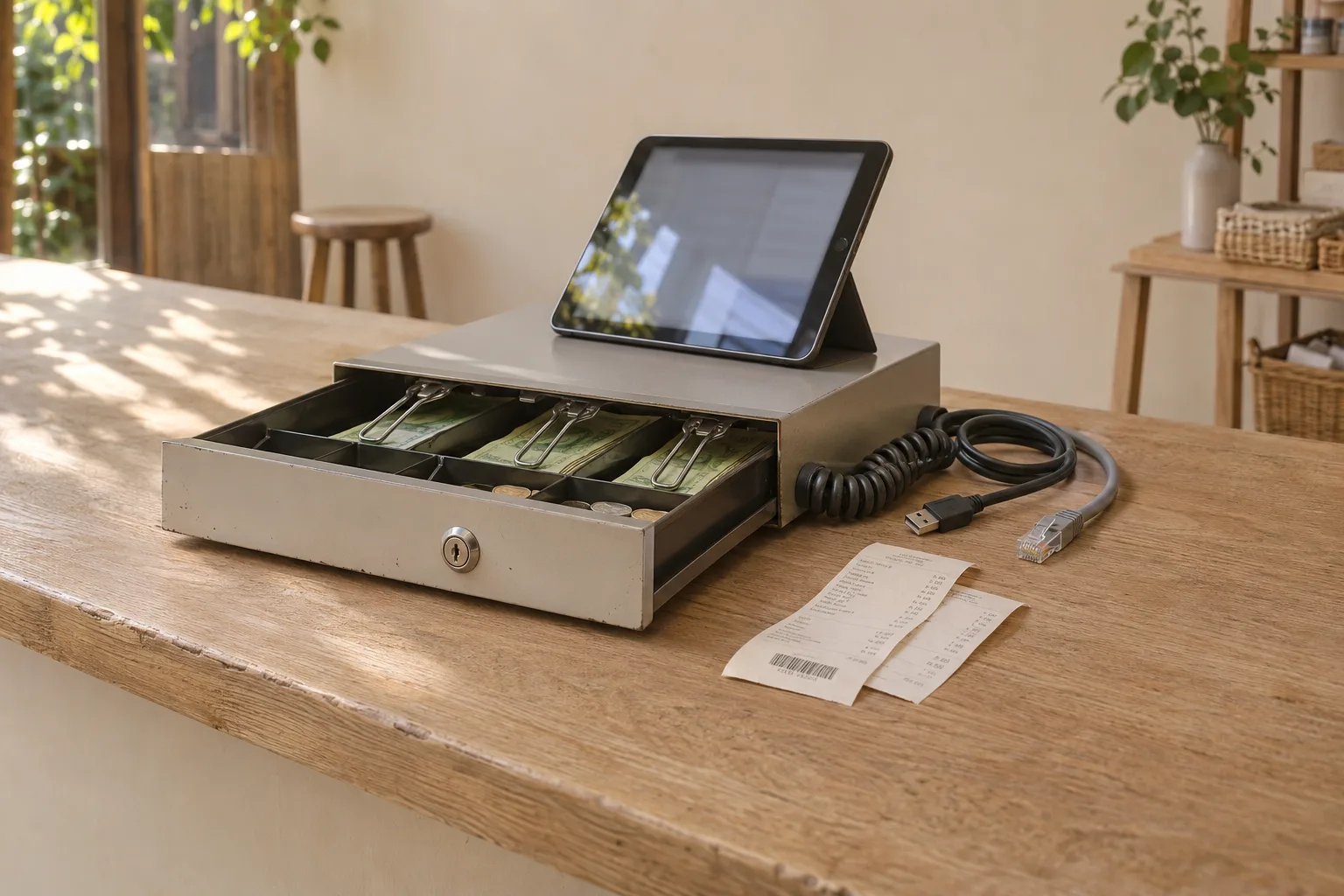
With a printer-driven drawer, run its cable into the printer’s drawer kick (DK) port. The printer then pops the drawer open at the end of each cash sale. The drawer needs no power supply of its own.
- Check the printer has a drawer port. It’s an RJ12 jack on the back, often labeled DK or Drawer. Epson warns: “Do not insert a telephone line into the drawer kick connector.”
- Buy a printer-driven drawer, not a USB-only one. Square sells a 14 x 16 in. printer-driven drawer (a Star CD4) for $129; Shopify sells Star CD4 drawers in 14 and 16 in. sizes for $139.
- Plug the drawer cable into the printer’s DK port. On Shopify with a LAN printer, “one cable connects the printer to the cash drawer” and the other goes to the router.
- Turn on the drawer in your POS app. In Square, a printer-driven drawer “won’t appear under Available Cash Drawers”; use Test Cash Drawer to check it instead.
- Run a test cash sale. Square’s drawer “will open every time you complete a cash sale” when connected to its USB or Ethernet receipt printer.
How it works: the printer sends a pulse from its 24 V pin to the drawer’s solenoid, which pops the latch. Epson’s TM-m30III guide says the solenoid must be “24 Ω or more or the input current must be 1A or less”, and Star rates its drive circuits at 24 V and 1 A maximum. One port has two drive signals, so it can run two drawers, but Epson says both “cannot be energized simultaneously.” The same port also drives Epson’s optional buzzer, so you can’t use the buzzer and a drawer at once.
Without a printer, a drawer opens with its key. Square: “A cash drawer must be connected to a receipt printer to open automatically. Otherwise, you need to manually open the drawer using the cash drawer key.” Star’s CD3 Value drawers come in a printer-driven or a USB version, and Square also sells a “USB & Printer-driven Cash Drawer” for $249.
Can any receipt printer open a cash drawer?
No. It needs a drawer kick port, and mobile printers don’t have one.
| Printer | Drawer port |
|---|---|
| Epson TM-m30III | Yes, one port |
| Epson TM-T88VII | Yes |
| Epson TM-T20IV | Yes, two drivers |
| Star TSP143IV | Yes, two circuits (24 V, 1 A max) |
| Star mC-Print3 | Yes, with drawer-open detection |
| Munbyn P047 | Munbyn says it “supports compatible cash drawer setups” |
| Epson TM-P20II and TM-P80II (mobile) | No; interfaces are USB-C plus Bluetooth or Wi-Fi |
Square puts it plainly: “Portable printer can’t power a cash drawer.” For a drawer that pops open by itself, pair it with a countertop printer.
How do I connect a receipt printer to an iPad?
Over your network (Ethernet or Wi-Fi), or over USB through your POS company’s hub. Plugging a printer straight into an iPad usually isn’t supported: Square says “Connecting a printer into an iOS device directly via a Lightning or USB-C is not supported,” and Shopify says a direct USB-C connection to the TM-m30III “is supported on Android only. To connect an iOS device by USB, use the Shopify POS Hub.”
What each POS app supports on an iPad:
| POS app | How to connect | iPad requirement |
|---|---|---|
| Square | Ethernet or Wi-Fi on the same network; USB through Square Stand, Register or Terminal; Bluetooth not recommended | Allow local network access |
| Shopify POS | Ethernet, Wi-Fi or Bluetooth; USB through the Shopify POS Hub | 5th generation or newer, iPadOS 15.1 or later |
| Lightspeed K-Series | LAN recommended; Bluetooth and USB link to one iPad only | |
| Lightspeed X-Series | Epson TM-m30III only: USB, LAN, Wi-Fi or Bluetooth | iOS 17.5 or later |
| Lightspeed R-Series | Star TSP143IV over LAN only |
To connect over the network:
- Connect the printer to your router by Ethernet (or join it to Wi-Fi with the maker’s setup app).
- Reserve its IP address in your router so it doesn’t change.
- Join the iPad to the same network.
- In Settings > Privacy & Security > Local Network, turn on access for your POS app.
- In the POS app’s hardware or printer settings, find the printer and print a test.
Bluetooth on iPad: Star says its Bluetooth POS printers are MFi certified, and apps that use Bluetooth Classic printers need Apple MFi approval, while “In case of a Bluetooth Low Energy printer, you do not need to obtain this app approval.” The Epson TM-m30III has Bluetooth 5.0 dual mode (Classic and LE). Epson notes that Bluetooth can’t be used while an iOS device is connected to the printer’s USB-C port in the default mode.
The TM-m30III’s USB-C port can also charge a tablet at up to 18 W. That’s why it suits an iPad stand on a small counter; see the Epson TM-m30III review.
Can I use a receipt printer without a POS system?
Yes. Epson and Star printers install as ordinary printers on a computer, and both makers offer apps for phones and tablets:
- Windows: Epson provides its APD Windows driver plus OPOS and JavaPOS; the TM-T20IV adds a macOS driver and Linux CUPS. Star supports Windows, including OPOS and JavaPOS.
- Mac and Linux: Epson’s TM-m30III comes with a Mac driver and a CUPS driver for Linux. Star printers use CUPS on macOS.
- iPhone and iPad: Star PassPRNT is a free iOS app that takes print data from another app and prints HTML or PDF. It supports the mC-Print3, TSP100IV and others.
- Browser: Star WebPRNT prints from a web page to Star printers, but the page needs Star’s JavaScript, so it takes some development. Epson’s ePOS service on the TM-T20IV Ethernet model prints from mobile devices and web apps.
- Budget printers: Munbyn lists Android, Windows, Mac, Linux and ChromeOS for the P047, and says it does not support iPhone or iPad.
Two dead ends: QuickBooks Desktop Point of Sale was discontinued on October 3, 2023 (Intuit points users to Shopify POS), and Star’s CloudPRNT plugin for WooCommerce was closed on WordPress.org on September 12, 2023 for a security issue. For WooCommerce, Automatic Order Printing for WooCommerce costs $119 a year and runs a print agent on a computer connected to the printer.
Can a receipt printer print labels?
Only models built for it, and only on the label stock they’re rated for. A standard receipt printer such as the TSP143IV is sold for receipt paper; Star sells a separate label version.
| Printer | Labels | Notes |
|---|---|---|
| Star TSP143IV SK | Sticky linerless labels or receipts, 80, 58 or 40 mm | $399 at Square; 180 mm/s; cutter rated 800,000 cuts and head 75 km, against 2 million cuts and 100 km on the standard TSP143IV |
| Star mC-Label3 | Linerless, die-cut and continuous labels, or receipts | Gap and black-mark sensors for die-cut labels; cutter rated 200,000 cuts on strong-adhesive stock, 1 million on weak |
| Epson TM-L100 | Liner-free labels or receipts | 170 mm/s; Epson halves its cutter rating on liner-free stock (1 million cuts against 2 million) |
These suit takeout and order labels that vary in length. For barcode, shelf or 4 x 6 in. shipping labels, a dedicated label printer is the better tool; Square itself sells a separate barcode label printer ($349). See the best shipping label printers and the best label makers.
Can a receipt printer print a logo?
Yes. You can store a logo in the printer, or have your POS app send it with each receipt.
- Make a black-and-white image. Thermal printers print one color. On 80 mm paper the printable width is 72 mm, or 576 dots on a 203 dpi printer, so keep the logo at or under that width.
- Store it in the printer. Epson: “Graphics, such as shop logos to be printed on receipts, can be registered. To register your graphics data, use TM-m30III Utility or ESC/POS commands.” Its R/E (Receipt Enhancement) setting then prints the logo at the top or bottom of each receipt. Epson says to rewrite this memory “10 times or less a day.”
- Or use the maker’s software. Star ships Receipt Redesign Software with the SP742 to add logos and coupons. For many printers at once, the Epson Deployment Tool pushes a logo file to TM-T20, TM-T88, TM-m30, TM-m50 and TM-L100 series printers by IP address.
- Or use your POS app’s receipt settings, if it has them, and skip programming the printer.
What is an auto-cutter on a receipt printer?
A blade that cuts the receipt off the roll after each print. A partial cut leaves a small tab so the receipt hangs until someone pulls it; a full cut separates it completely. Printers without a cutter have a tear bar. Makers rate cutters by the number of cuts:
| Printer | Cutter | Rated cuts |
|---|---|---|
| Epson TM-T88VII | Auto-cutter | 3 million |
| Epson TM-m30III | Partial (default) or full | 2.2 million partial, 1.5 million full |
| Epson TM-T20IV | Auto-cutter | 2 million |
| Star TSP143IV | Partial only | 2 million |
| Star mC-Print3 | Partial only | 2 million |
| Star SP742 (impact) | Auto-cutter | 1 million |
| Epson TM-P80II Plus (mobile) | Auto-cutter | 500,000 |
| Epson TM-P20II, TM-P80II (mobile) | None, tear-off |
At about one cut per receipt, 2 million cuts is about 18 years at 300 receipts a day, by our estimate.
What is ESC/POS?
ESC/POS is Epson’s command language for receipt printers. POS software sends these commands to format the receipt, print a stored logo and open the cash drawer. Epson’s ESC/POS Command Reference (revision 3.40) covers about 55 Epson models, from the TM-T20 and TM-T88VII to the TM-m30III and TM-U220 impact printers, and warns that customized models “may support different commands.” ESC/POS is a registered trademark of Seiko Epson.
Star printers speak Star’s own language, StarPRNT; Star lists the TSP143IV’s emulation as “Star Graphics Mode and StarPRNT.” How the two brands compare beyond this is in Epson vs Star receipt printers. If your software needs ESC/POS, buy Star’s ESC/POS version:
- TSP143IVUE in gray, part 37952421 (“GRY US ESCP”)
- TSP143IVUEWB, part 37952441
- SP742ME, part 37952460
Star added ESC/POS emulation to the TSP143IV UE and to the SP742 (over LAN only) in February 2026, for businesses whose software relies on it. We couldn’t confirm that a standard TSP143IV can be switched to ESC/POS after purchase, so buy the ESC/POS part number if you need it.
Budget brands such as Munbyn, Rongta and Volcora all say their printers use ESC/POS. That’s how they work with Windows and Android apps, but it doesn’t put them on any major POS company’s supported list. Loyverse notes that on iOS “the printer generally needs to support ESC/POS commands that are the same as Epson printers.”
What is a cloud receipt printer?
A printer that fetches print jobs from a web server over the internet, so an online order can print at your counter or kitchen with no POS computer in between. Epson calls its version Server Direct Print: on the TM-U220II it lets the printer “retrieve orders from a Web server and print receipts without requiring integration with POS software.” Star’s is CloudPRNT.
| Printer | Cloud printing |
|---|---|
| Epson TM-m30III, TM-T88VII, TM-U220II | Server Direct Print |
| Star TSP143IV | CloudPRNT Next (with updated firmware) |
| Star mC-Print3, 2nd generation | CloudPRNT Next |
| Star mC-Print3, 1st generation | CloudPRNT |
A cloud-ready printer still needs software on the other end: your ordering site or a plugin has to serve the jobs. A Wi-Fi printer isn’t a cloud printer unless it supports one of these.
Questions people ask
Can two iPads share one receipt printer?
Yes, over Ethernet or Wi-Fi. Bluetooth and USB printers connect to one device at a time; Lightspeed says USB printers “cannot be shared.”
Does a cash drawer need its own power?
Not a printer-driven drawer. The printer powers its 24 V solenoid through the drawer cable.
Can I plug a receipt printer into my iPad’s USB-C port?
Not with Square, which doesn’t support it. With Shopify POS on an iPad, use the Shopify POS Hub; a direct USB-C connection works on Android only.
What cable connects a cash drawer to a receipt printer?
A drawer kick cable with an RJ12 plug on the printer end, usually attached to the drawer. It looks like a phone cable, but Epson warns never to plug a telephone line into the port.
Do I need a static IP for a receipt printer?
It helps. Lightspeed recommends a DHCP reservation or static IP so the POS app can always find the printer.
Which receipt printer is easiest to set up?
The Star TSP143IV for Square, and the Epson TM-m30III for Shopify or Lightspeed. Each is the printer that POS company sells. See the best receipt printers for POS systems and what a receipt printer costs.
Sources
- Connect hardware to iPads (Square Support), squareup.com
- Connect a cash drawer to your point of sale (Square Support), squareup.com
- Troubleshoot receipt printers (Square Support), squareup.com
- Square Receipt Printer, Star TSP143IVUE (Square Shop), squareup.com
- Printer-Driven Cash Drawer (Square Shop), squareup.com
- Square hardware accessories (Square Shop), squareup.com
- Compatible printers (Square), squareup.com
- Setting up a receipt printer (Lightspeed K-Series), k-series-support.lightspeedhq.com
- Supported hardware (Lightspeed K-Series), k-series-support.lightspeedhq.com
- Supported hardware (Lightspeed X-Series), x-series-support.lightspeedhq.com
- Supported hardware (Lightspeed R-Series), retail-support.lightspeedhq.com
- Set up a receipt printer (Shopify Help Center), help.shopify.com
- Epson TM-m30III requirements (Shopify Help Center), help.shopify.com
- Shopify Hardware Store: receipt printers, hardware.shopify.com
- Epson TM-m30III Technical Reference Guide, Epson
- Epson TM-m30III specifications, download4.epson.biz
- Epson OmniLink TM-m30III, Epson
- Epson TM-T88VII brochure, download.epson.com.sg
- Epson TM-P20II and TM-P80II brochure, download.epson.com.sg
- Epson TM-U220II specification sheet, mediaserver.goepson.com
- Epson TM-L100 brochure, download.epson.com.sg
- Epson ESC/POS Command Reference, download4.epson.biz
- Epson Deployment Tool logo FAQ (Epson Europe), epson.eu
- Star TSP143IV thermal receipt printer, starmicronics.com
- Star TSP143IV SK sticky linerless label printer, starmicronics.com
- Star mC-Print3 thermal receipt printer, starmicronics.com
- Star SP742 impact printer, starmicronics.com
- Star mC-Label3 spec sheet, media.starmicronics.com
- Star CD3 Value cash drawer spec sheet, media.starmicronics.com
- StarXpand SDK for iOS (Star Micronics on GitHub), github.com
- Star PassPRNT (App Store), apps.apple.com
- Star Micronics expands ESC/POS compatibility (Star press release, February 2026), prweb.com
- Star CloudPRNT for WooCommerce (WordPress.org), wordpress.org
- Automatic Order Printing for WooCommerce, woocommerce.com
- Supported printers (Loyverse), help.loyverse.com
Keep exploring
Buying guide
The best barcode label printers
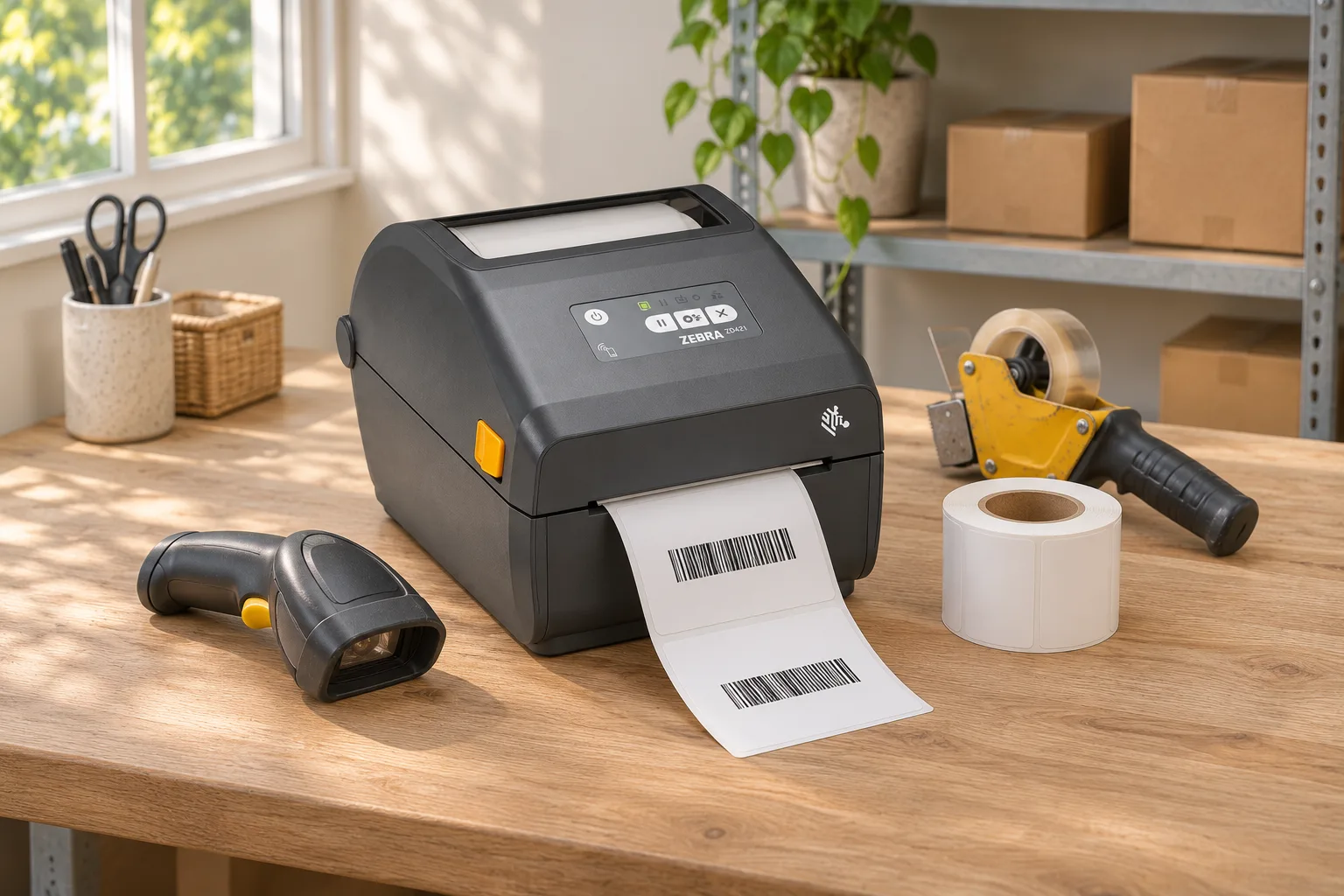
The Zebra ZD421 is the best barcode label printer for most businesses: 4-inch labels at 6 inches a second, any brand of label roll and a 24-month warranty, for about $480 to $526 in November 2026. Get the Brother QL-820NWBc ($229.99) for an office or shop counter, and a thermal transfer model for inventory labels that have to last.
Read story
Buying guide
The best check printers for a small business
The TROY 3001dw ($509.15 at TROY, $530 at Amazon in November 2026) is the best check printer for a small business: a 35 ppm Wi-Fi laser with MICR toner, rated for 350 to 2,500 checks a month, at about 5¢ to 7¢ per check three to a page by our estimate. Get the TROY 4001dn for a locking tray, or the VersaCheck M15 MXD ($399.99) for software in the box.
Read story