Printers in this guide
Best color laser for a busy small office
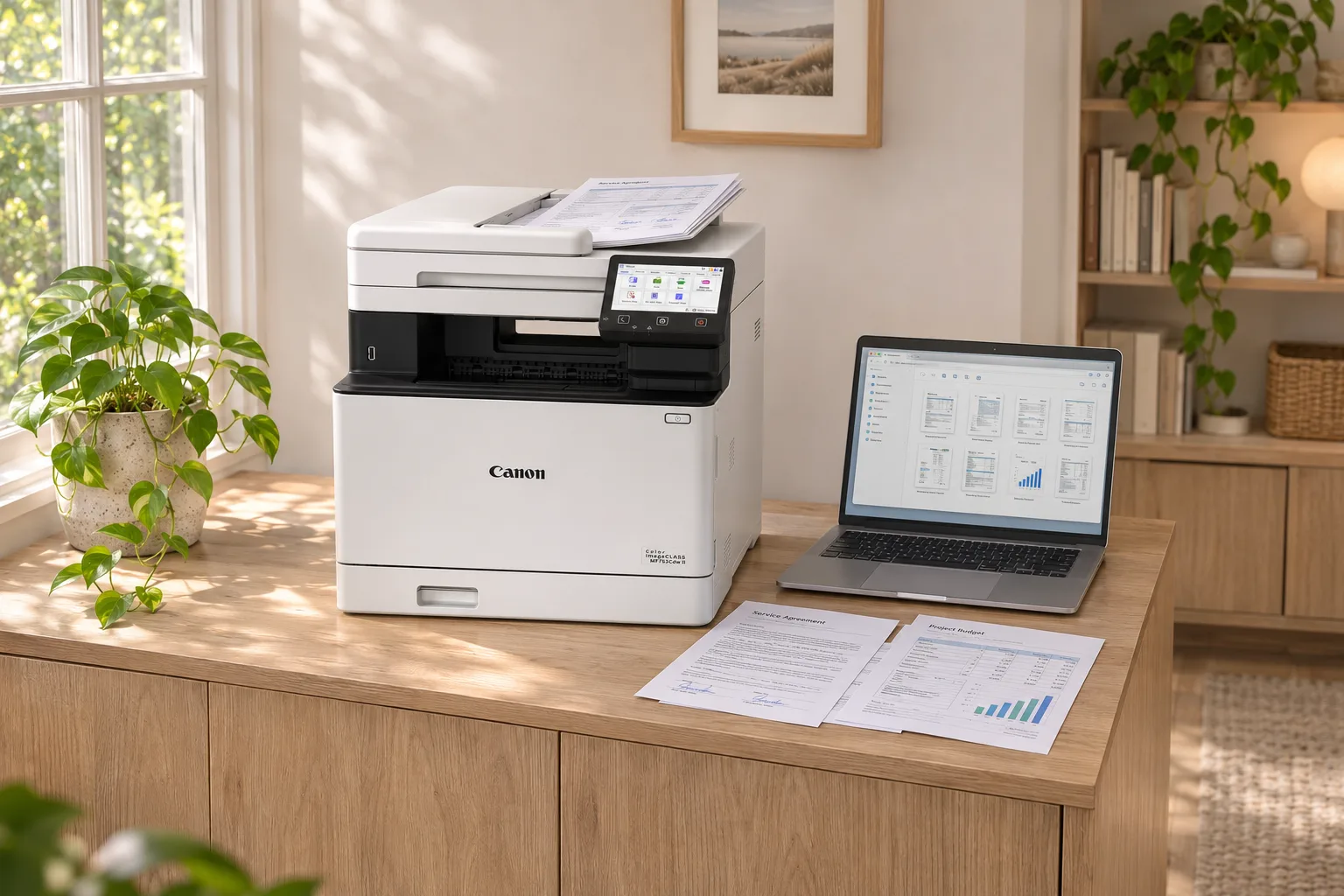
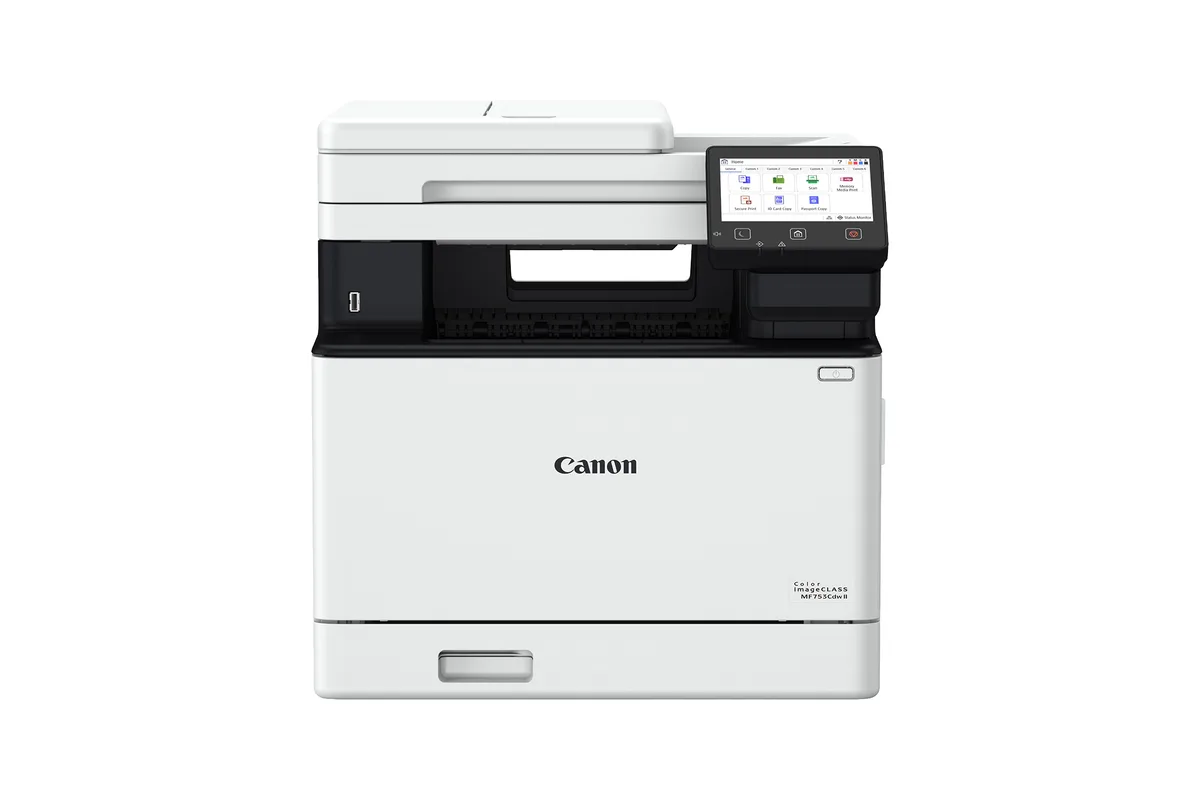
Canon Color imageCLASS MF753Cdw II
Fast color laser all-in-one for teams
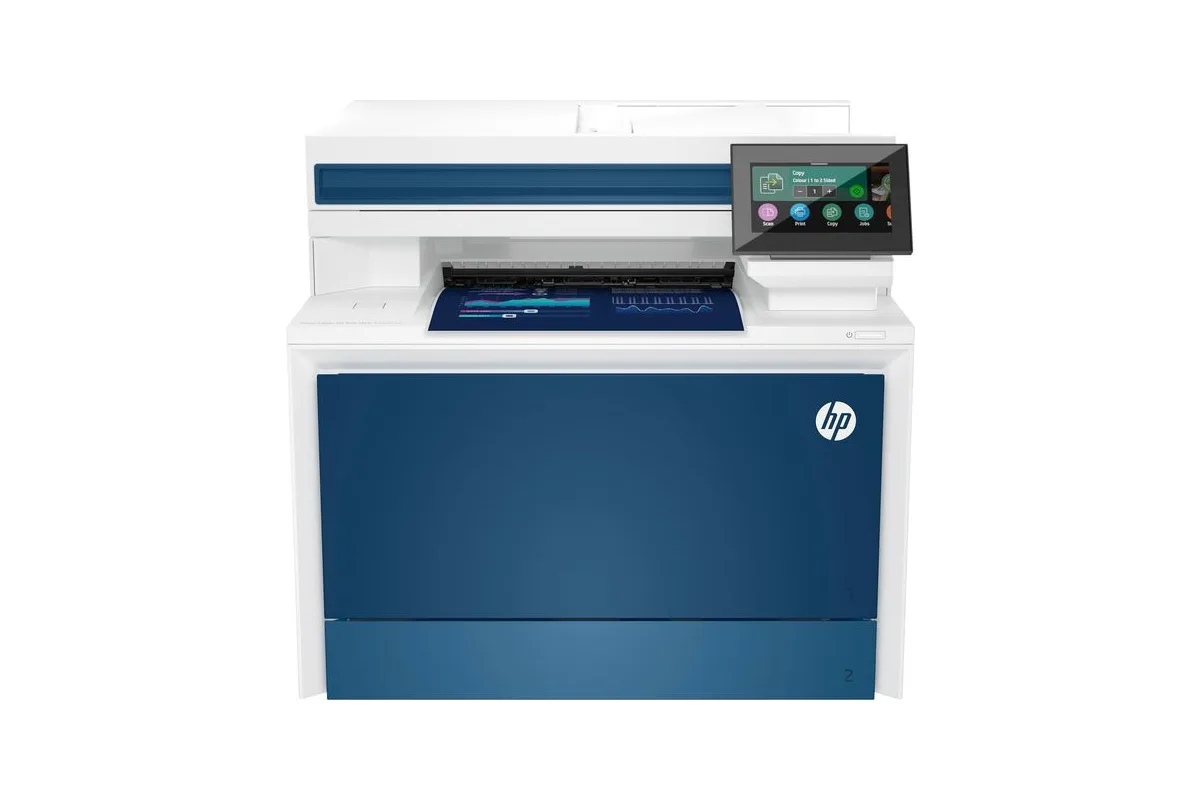
HP Color LaserJet Pro MFP 4301fdw
Can an office printer scan to email, Google Drive or OneDrive?
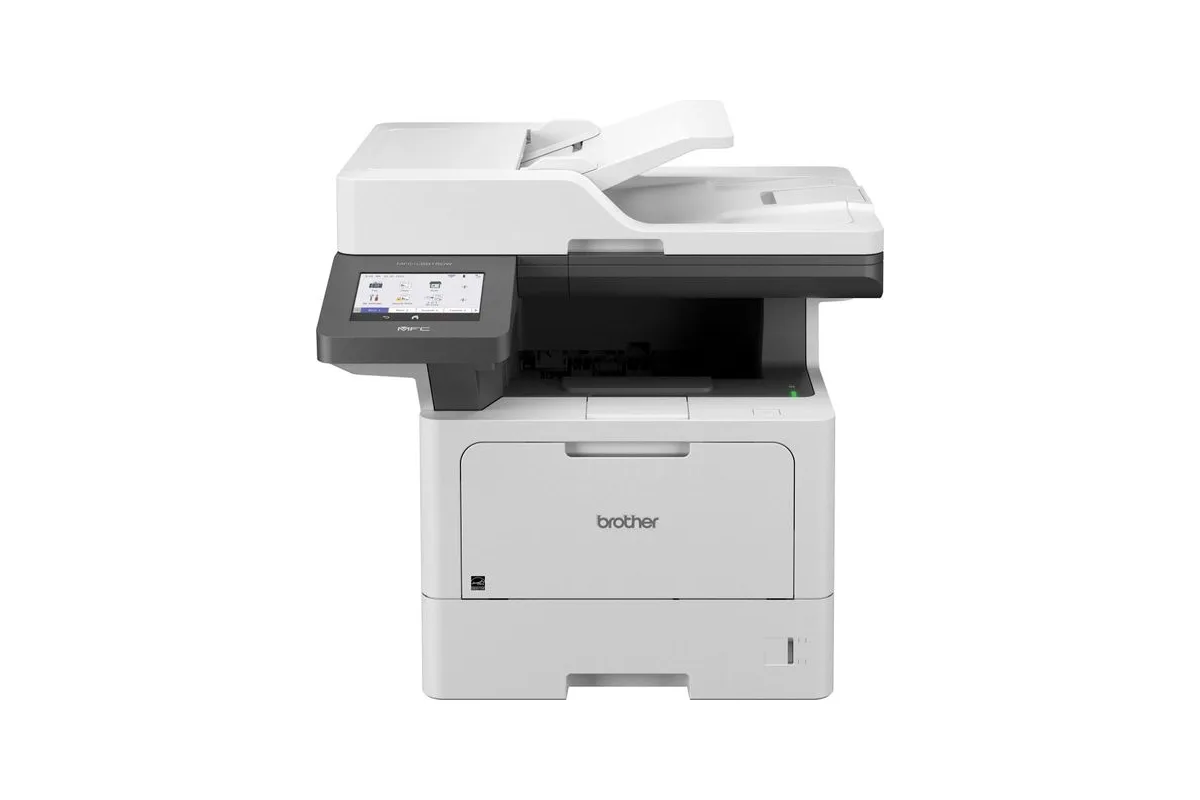
Yes. Any networked office all-in-one can scan to email once you give it an outgoing mail server, usually port 587 with TLS, and a mailbox to send from. Scanning straight to Google Drive, OneDrive or SharePoint Online is rarer: Brother’s business lasers such as the MFC-L5915DW do it from the touchscreen for seven services, while most HP, Canon and Epson models send cloud scans through the maker’s app or cloud account.
The hard part in 2026 is the mail server’s sign-in rules: Gmail won’t take your normal password from a printer, and Microsoft 365 turns off password sign-in for SMTP by default at the end of December 2026.
Which office printers scan to which destinations?
Built in means the printer sends the file itself, with no computer or app. From each maker’s spec pages and manuals, checked November 2026:
| Printer | Email sign-in | Network folder | SharePoint | Google Drive / OneDrive |
|---|---|---|---|---|
| Brother MFC-L5915DW | Password (OAuth not listed) | Yes (CIFS/SMB, plus FTP, SFTP) | Yes, on-site and SharePoint Online | Both, built in (Web Connect) |
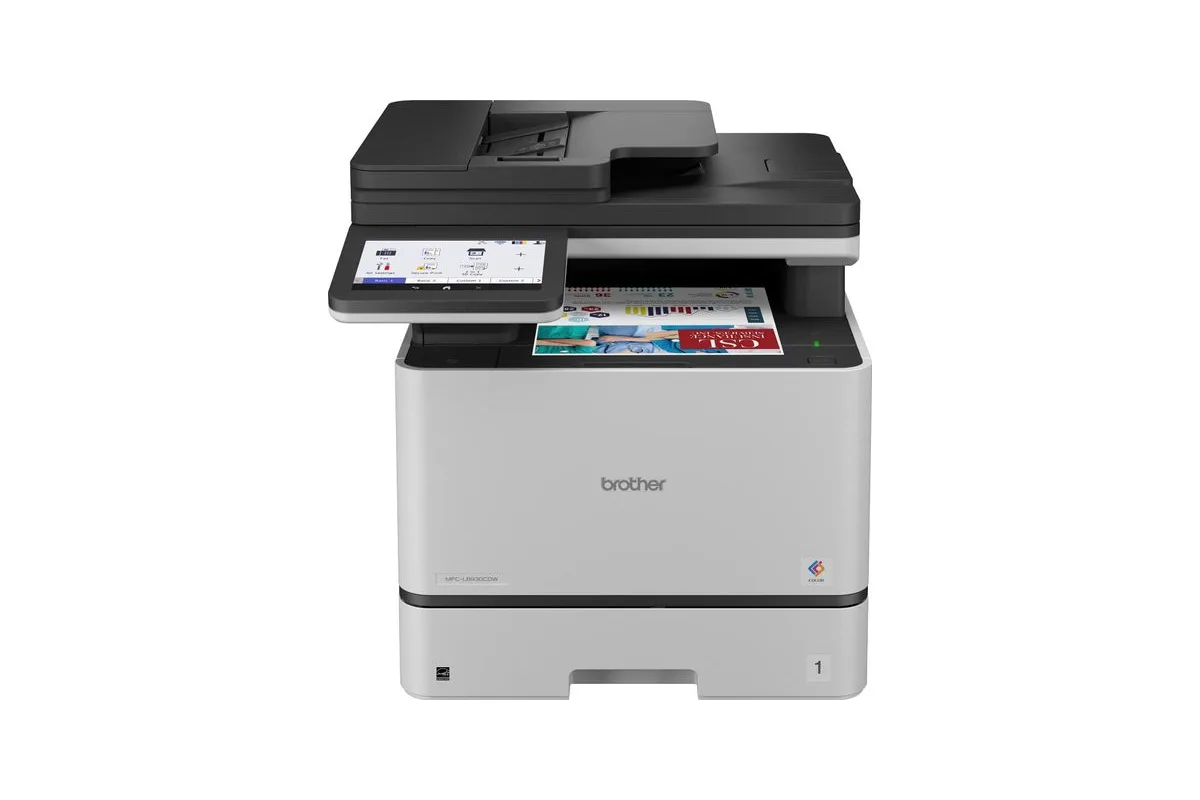
| Brother MFC-L8930CDW | OAuth listed | Yes (plus FTP, FTPS, SFTP) | Yes, on-site and SharePoint Online | Both, built in (Web Connect) |
| Canon MF753Cdw II | OAuth 2.0 for Exchange Online and Google Workspace | Yes (SMB, FTP) | Not listed | Through Canon’s cloud integration service; neither named |
| HP Color LaserJet Pro 4301fdw | Password | Yes | On-site only (not SharePoint 365) | Not listed |
| HP LaserJet Pro 4101fdw | Password | Yes | Yes | Google Drive built in (plus Dropbox); no OneDrive |
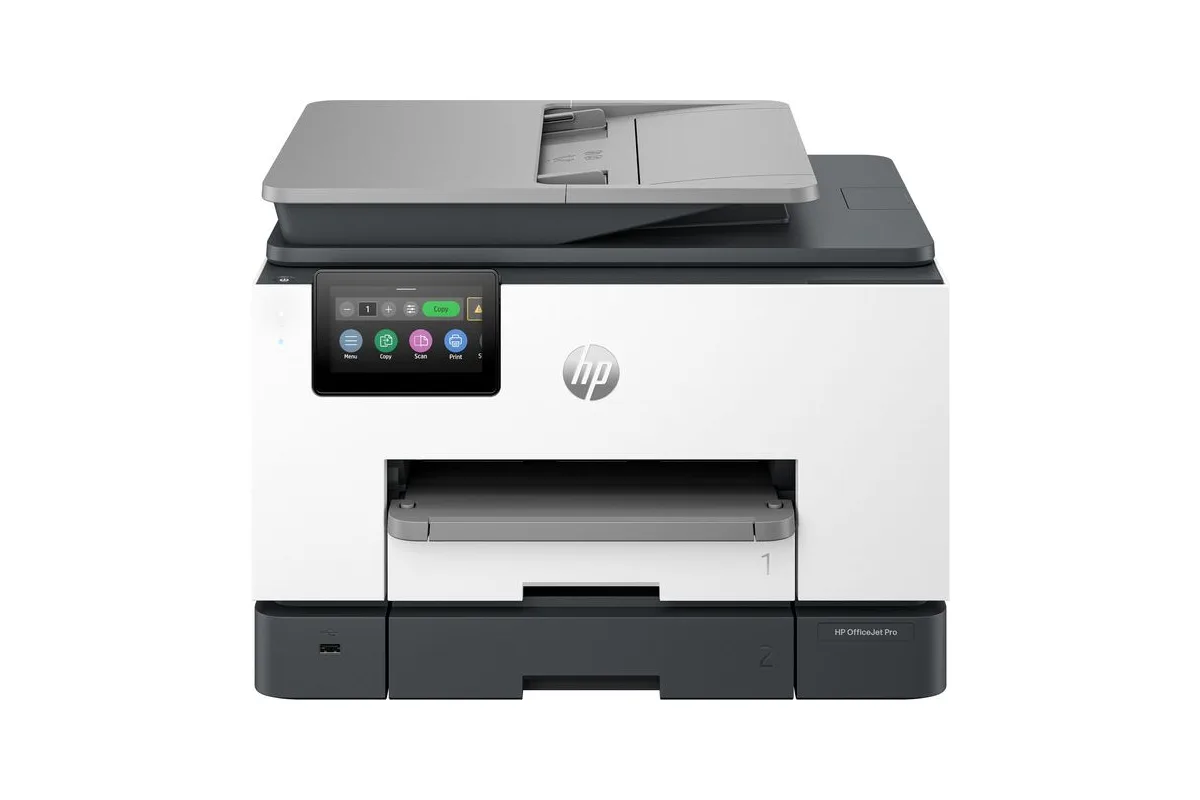
| HP OfficeJet Pro 9135 | Password | Yes | Yes | Through the HP app (HP account) |
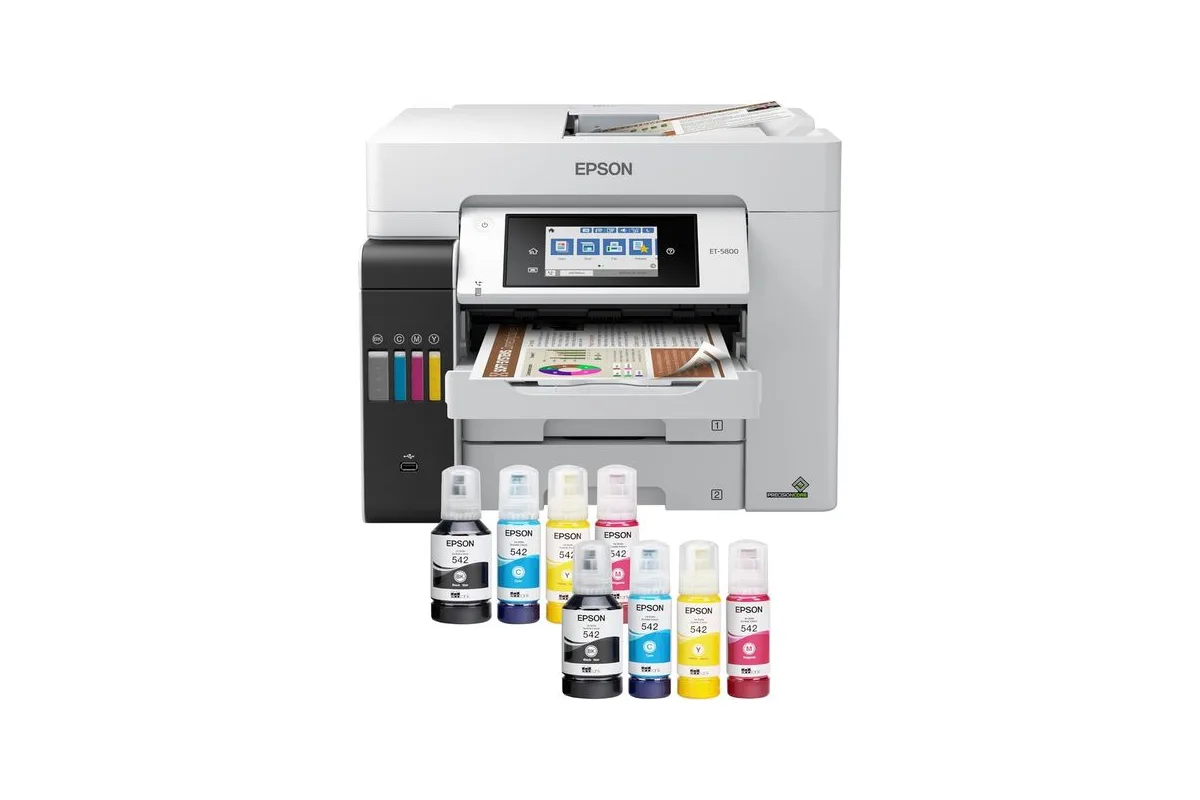
| Epson ET-5800 / ET-5850 | Password | Yes (SMB, FTP) | Not listed | Google Drive through Epson Connect; no OneDrive |
| Epson WF-4830 / WF-4930 | Password | Yes | Not listed | Google Drive through Epson Connect; no OneDrive |
| Epson ET-4950 | No scan to email from the panel | Not listed | Not listed | Google Drive through Epson Connect |
| Xerox C325 | Password | Yes (SMB, FTP, SFTP) | Not listed | Through the Xerox app only |
If your files live in OneDrive or SharePoint Online, buy a Brother: the MFC-L5915DW is $589.99 at Brother and Amazon in November 2026, and the color MFC-L8930CDW is $699.99. Best printers for scanning compares feeders and scan speeds.
How do you set up scan to email on an office printer?
Open the printer’s web page, enter the mail server, sign in a sender mailbox, and send a test. The steps are the same on every brand:
- Find the printer’s IP address on its screen or network report, and type it into a browser on the same network.
- Sign in as administrator. Brother prints the default password on a label marked “Pwd”, HP asks for the printer’s own PIN, and Epson uses the serial number. Change it now (see office printer security).
- Enter the SMTP server, port 587, and STARTTLS or TLS.
- Sign in with a dedicated mailbox such as scans@yourcompany.com, so scanning doesn’t break when someone leaves.
- Send the test email the setup page offers, then scan a page from the panel.
What settings do Gmail and Microsoft 365 need?
For Microsoft 365, use smtp.office365.com on port 587. For Gmail or Google Workspace, use smtp.gmail.com on port 587 with an app password, or Google’s relay. From Microsoft’s and Google’s own setup pages, read November 25, 2026:
| Option | Server and port | How the printer signs in | Limits and catches |
|---|---|---|---|
| Microsoft 365 SMTP AUTH | smtp.office365.com, 587, TLS 1.2 or 1.3 | Mailbox address and password, or OAuth | 30 messages a minute, 10,000 recipients a day; off by default in tenants created after January 2020 |
| Microsoft 365 SMTP relay | Your MX endpoint (yourdomain-com.mail.protection.outlook.com), 25 | An inbound connector that trusts your static IP or a certificate | Needs a static public IP and an SPF record |
| Microsoft 365 Direct Send | Your MX endpoint, 25 | None | Delivers only to your own Microsoft 365 mailboxes |
| Gmail / Workspace SMTP | smtp.gmail.com, 587 (TLS) or 465 (SSL) | Full address plus a 16-character app password | 2,000 messages a day; app password needs 2-Step Verification |
| Workspace SMTP relay | smtp-relay.gmail.com, 25, 465 or 587 | Your office’s IP address, set in the Admin console | 10,000 recipients per user a day; Google calls it the most secure option |
Three dates and rules matter:
- Microsoft 365, end of December 2026: Basic (password) authentication for SMTP AUTH is disabled by default in existing tenants. Admins can switch it back on for now; Microsoft will set a final removal date in the second half of 2027. After that, a password-only printer needs relay or Direct Send.
- Microsoft 365, port 465: Microsoft says a device that defaults to 465 lacks the TLS it requires. Use 587.
- Google Workspace, since May 1, 2025: Workspace accounts no longer accept a plain password from devices. Use OAuth, an app password or the relay. On personal Gmail, most printers need an app password, which isn’t offered on accounts with Advanced Protection or security-key-only sign-in.
How do you set it up on a Brother, HP, Canon or Epson?
Every brand does it in the printer’s web page; only Brother’s newer models and Canon offer OAuth sign-in.
- Brother: In Web Based Management, go to Network > Network > Protocol > POP3/IMAP4/SMTP Client > Advanced Settings, pick the authentication method and send the test email. Brother lists OAuth for the MFC-L8930CDW but not the MFC-L5915DW, so update the firmware and check that menu before counting on it.
- HP Color LaserJet Pro 4301fdw: In the Embedded Web Server, go to General > Email Servers, add a profile, turn on Always Use Secure Connection (SSL/TLS) and choose “Server requires authentication.” HP’s guide shows only a username and password, and says Gmail needs an app password.
- Canon MF753Cdw II: In Remote UI (administrator mode), go to Settings/Registration > TX Settings > OAuth 2.0 (Microsoft) Settings or OAuth 2.0 (Google) Settings. Microsoft sign-in uses a one-time user code; Google needs a client ID and secret created in your Google Workspace. You can’t do this from the control panel.
- Epson WF-4830 and ET-5800: On the panel, go to Settings > General Settings > Network Settings > Advanced > Email Server. Epson offers SMTP AUTH or POP before SMTP and STARTTLS or SSL/TLS. The WF-4830’s default port is 25, so change it to 587. Epson’s guides show no OAuth option on these printers.
Can a printer scan straight to Google Drive, OneDrive or SharePoint?
Some can. Brother Web Connect, on the MFC-L5915DW and MFC-L8930CDW, uploads scans to Google Drive, OneDrive, SharePoint Online, Dropbox, Box, Evernote and OneNote as PDF, Word, Excel, PowerPoint, JPEG or TIFF. You apply once at bwc.brother.com, get a temporary ID that lasts 24 hours, and register it on the printer. You need an account with each service.
The others go through the maker’s cloud:
- Epson Scan to Cloud sends to Box, Dropbox, Evernote and Google Drive and needs a free Epson Connect account. Epson doesn’t list OneDrive or SharePoint.
- Canon’s cloud integration service needs the printer registered with a code from Menu > Preferences > Network > Web Service Setup. Canon says it isn’t available in every region.
- HP builds Google Drive and Dropbox into the LaserJet Pro 4101fdw. The OfficeJet Pro 9135 reaches Google Drive and OneDrive only through the HP app, which needs an HP account.
No Web Connect? Scan to a network folder on a PC running the OneDrive or Google Drive desktop app, and the PC uploads the files. To avoid maker accounts, see printers that work without an app.
How do you scan to a network folder (SMB)?
Share a folder on a Windows PC or file server, give the printer its own username and password for it, and save the path as a profile in the printer’s web page. On Brother models it’s Scan > Scan to FTP/SFTP/Network/SharePoint > Network. On Epson it’s a contact of type Network Folder (SMB) with a path like \\server\scans.
Two rules prevent most failures:
- The printer must speak SMB2 or newer. Windows 11 doesn’t include SMBv1, and Microsoft stopped installing it by default with Windows 10 version 1709. Brother lists SMB v3 on the MFC-L5915DW. An SMBv1-only printer needs a firmware update or scan to email.
- Use a dedicated account, not guest access. Create a Windows user for the scanner that can write only to the scan folder, and keep the PC that holds the share switched on.
Brother’s folder scanning is “Scan to Network (Windows),” so Mac offices should scan to email instead. Network setup is in how to set up an office printer.
Questions people ask
Why does my printer say “authentication failed” when I scan to email?
Usually the account is refusing the sign-in. Gmail needs a 16-character app password, not your regular password. On Microsoft 365, SMTP AUTH may be off for that mailbox (it is by default in tenants created after January 2020), or the printer may be using port 465.
Do I need a computer on to scan to email?
No. The printer sends the email itself through your mail server. Scanning to a network folder needs the computer or server that holds the folder to be on.
Will my printer’s scan to email stop working with Microsoft 365?
If it signs in with a username and password, it can, from the end of December 2026, when Microsoft turns off Basic authentication for SMTP AUTH by default. Your admin can turn it back on for now, or set up SMTP relay with a connector, which doesn’t need a password.
Which office printer is best for scanning to the cloud?
The Brother MFC-L5915DW: it has seven cloud services built in, a 70-sheet single-pass feeder that scans both sides at up to 60 images a minute, and it costs $589.99. For color, the MFC-L8930CDW adds OAuth email sign-in and a 104-image-per-minute feeder. More picks are in best business laser printers.
Sources
- Microsoft Learn: How to set up a multifunction device or application to send email using Microsoft 365, learn.microsoft.com
- Microsoft Exchange Team: Updated Exchange Online SMTP AUTH Basic Authentication deprecation timeline (Jan 2026), techcommunity.microsoft.com
- Microsoft Learn: Enable or disable authenticated client SMTP submission (SMTP AUTH) in Exchange Online, learn.microsoft.com
- Google Workspace Admin Help: Send email from a printer, scanner, or app, knowledge.workspace.google.com
- Google Account Help: Sign in with app passwords, support.google.com
- Microsoft Learn: SMBv1 availability in Windows Server and Windows, learn.microsoft.com
- Brother MFC-L5915DW product page (scan destinations), Brother
- Brother MFC-L5915DW brochure, assets.brother.com
- Brother MFC-L8930CDW product page (OAuth, scan destinations), Brother
- Brother Online User's Guide: Send Scanned Data to an Email Recipient, support.brother.com
- Brother Security Features Guide: Configure Email Sending Using Web Based Management, support.brother.com
- Brother Online User's Guide: Online Services Used with Brother Web Connect, support.brother.com
- Brother Online User's Guide: Apply for Brother Web Connect Access, support.brother.com
- Brother Online User's Guide: Set up a Scan to Network Profile, support.brother.com
- HP Color LaserJet Pro MFP 4301, 4302, 4303: Set up and Scan to Email, support.hp.com
- HP Color LaserJet Pro MFP 4301-4303 user guide (scan destinations), manualowl.com
- HP LaserJet Pro MFP 4101fdn/fdw data sheet, smccd.edu
- HP OfficeJet Pro 9135 product page, HP
- HP Color LaserJet Pro MFP 4301fdw product page, HP
- Canon MF753Cdw II User's Guide: Configuring a Cloud Mail Server (Remote UI), oip.manual.canon
- Canon MF753Cdw II User's Guide: Using the Cloud Integration Service to Print and Scan, oip.manual.canon
- Canon Color imageCLASS MF753Cdw II store page, Canon
- Epson WF-4820/WF-4830 User's Guide (email server settings, network folder scanning), Epson
- Epson ET-5800/ET-5850/ET-5880 User's Guide, Epson
- Epson Scan to Cloud, Epson
- Epson EcoTank Pro ET-5800 product page, Epson
- Epson EcoTank ET-4950 product page, Epson
- Xerox C325 specifications, xerox.com
Keep exploring
Buying guide
The best barcode label printers
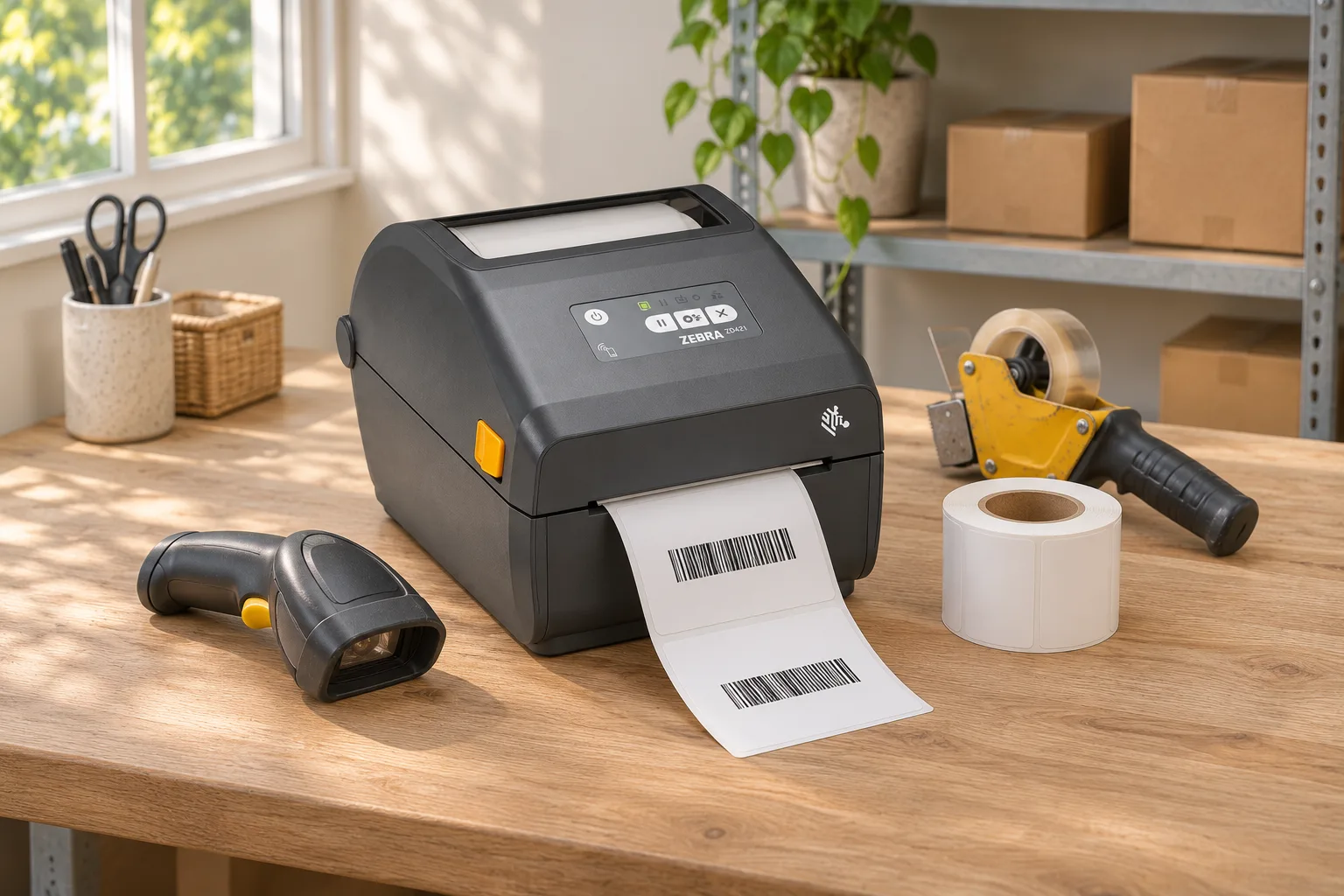
The Zebra ZD421 is the best barcode label printer for most businesses: 4-inch labels at 6 inches a second, any brand of label roll and a 24-month warranty, for about $480 to $526 in November 2026. Get the Brother QL-820NWBc ($229.99) for an office or shop counter, and a thermal transfer model for inventory labels that have to last.
Read story
Buying guide
The best check printers for a small business
The TROY 3001dw ($509.15 at TROY, $530 at Amazon in November 2026) is the best check printer for a small business: a 35 ppm Wi-Fi laser with MICR toner, rated for 350 to 2,500 checks a month, at about 5¢ to 7¢ per check three to a page by our estimate. Get the TROY 4001dn for a locking tray, or the VersaCheck M15 MXD ($399.99) for software in the box.
Read story