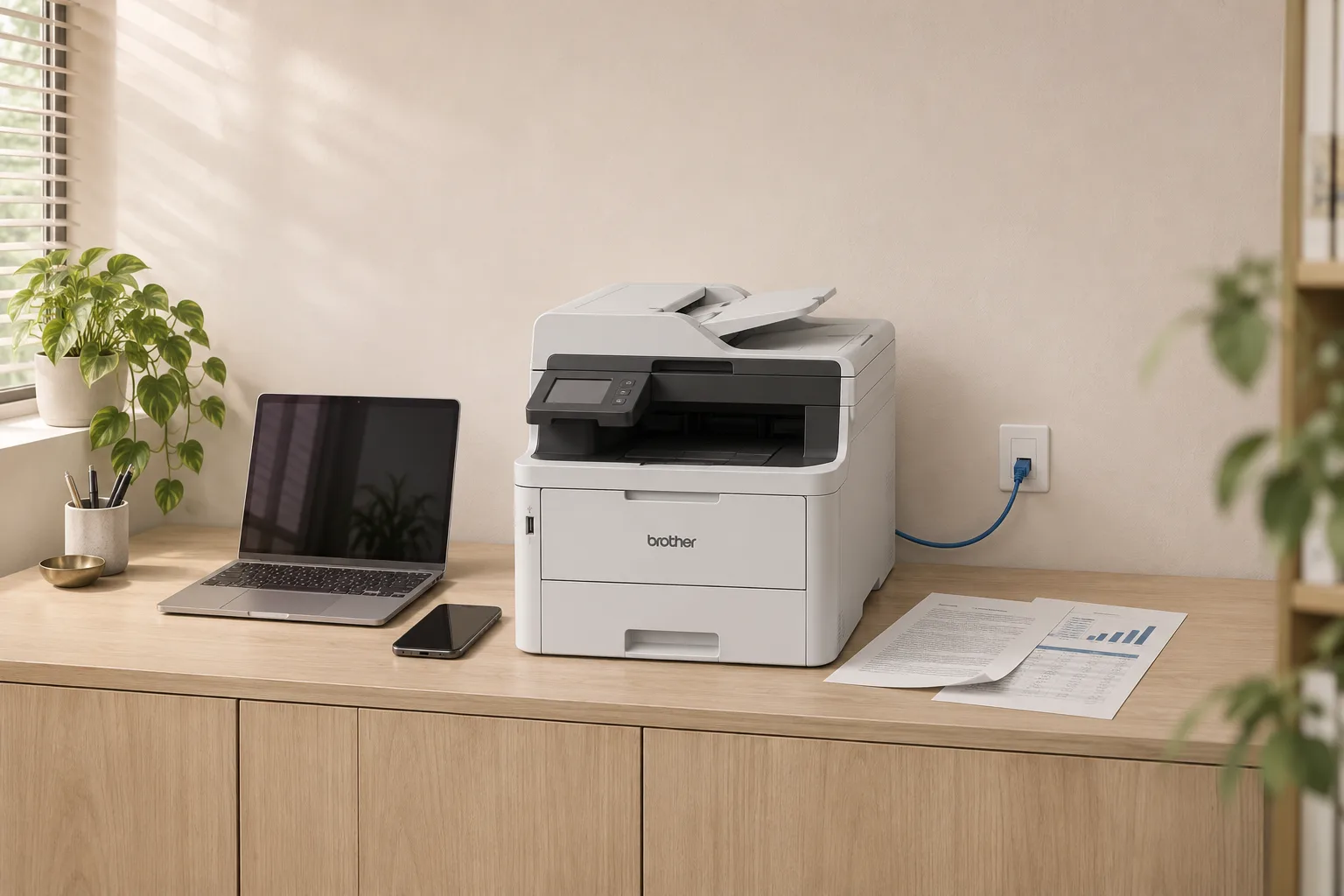
Printers in this guide
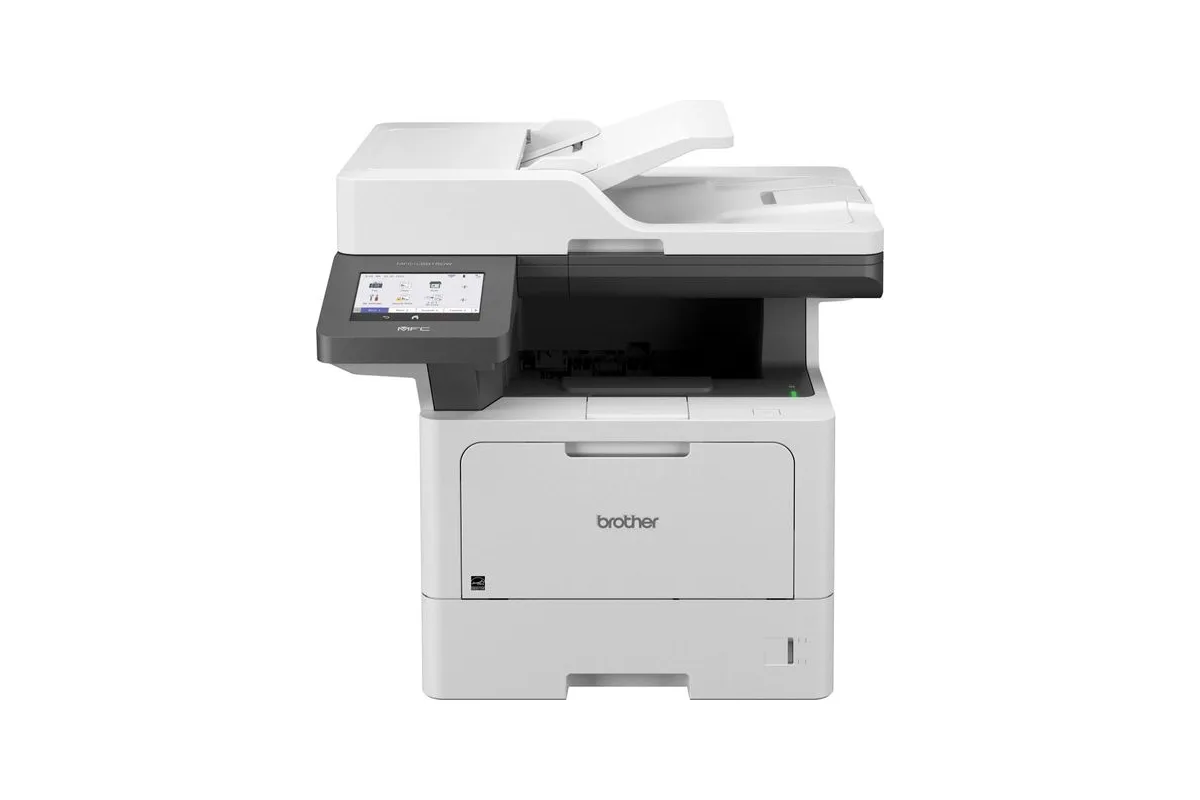
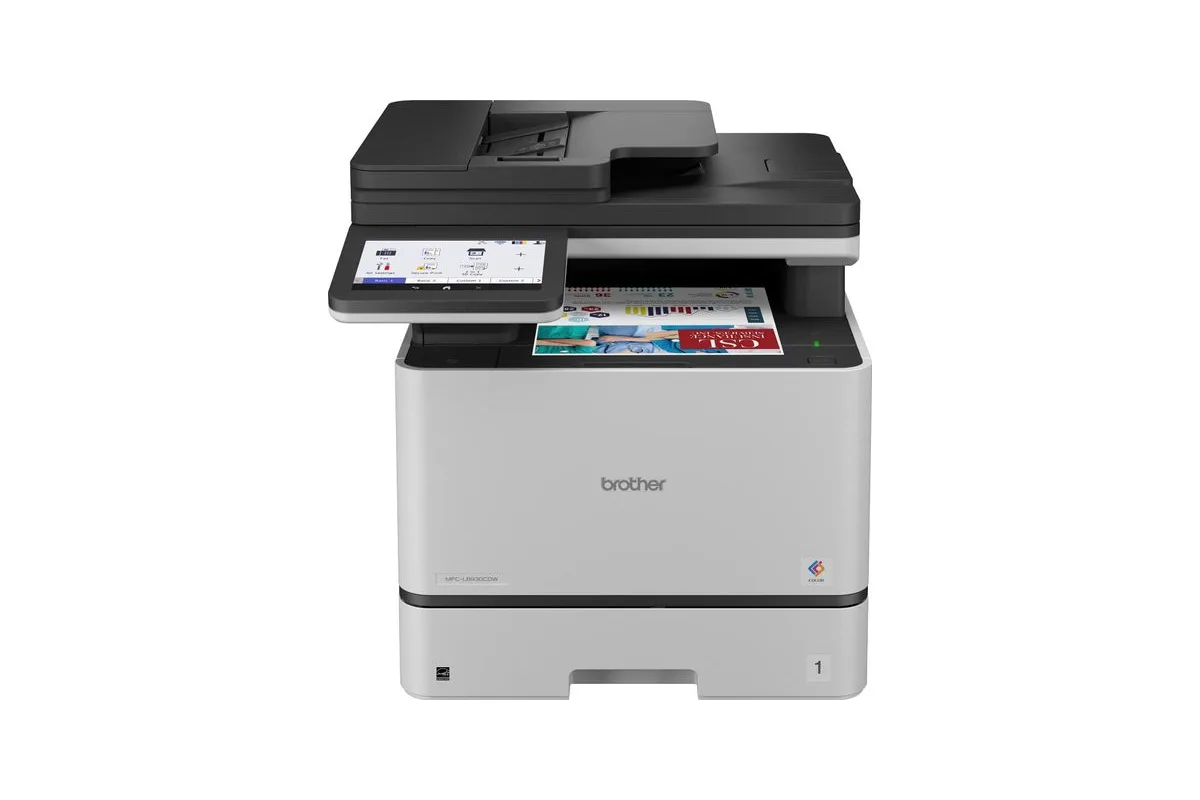
Best color laser for a busy small office
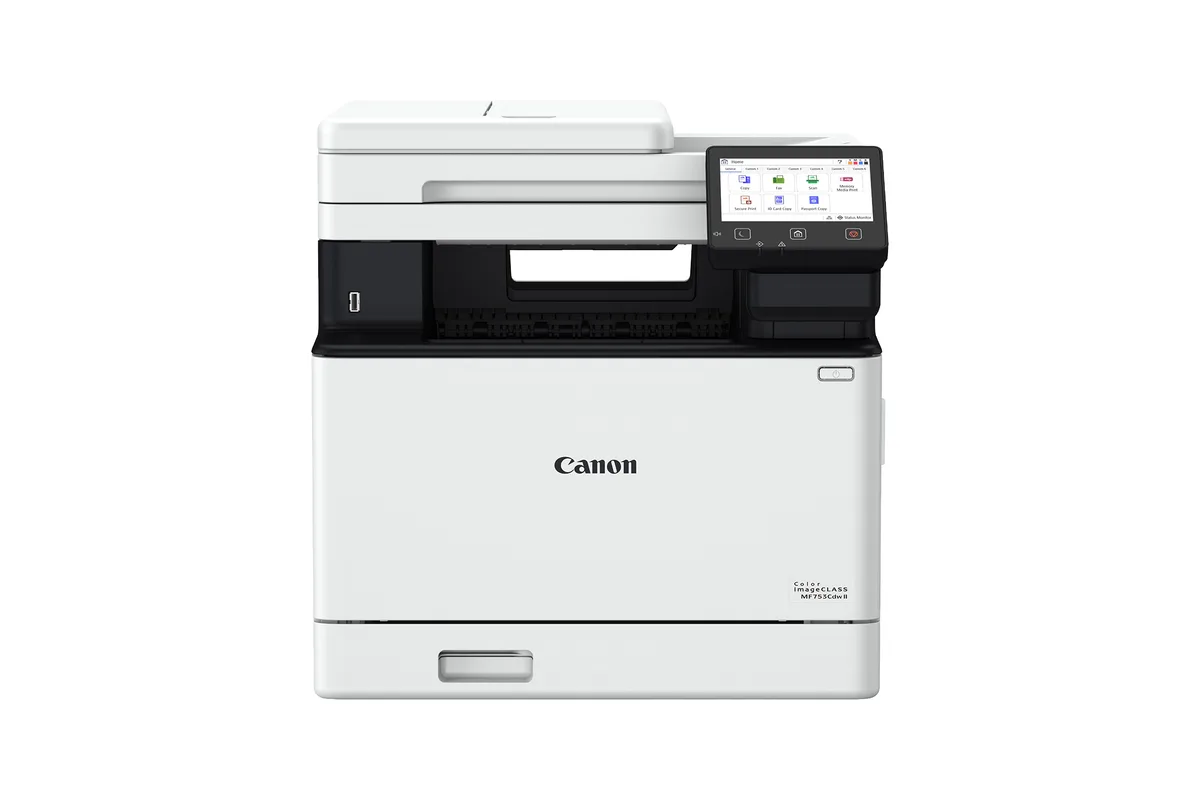
Canon Color imageCLASS MF753Cdw II
How do I share one printer in a small office?
Connect the printer to your office network, give it a fixed IP address, and add it on each computer and phone. Every printer below has Ethernet and Wi-Fi, and all of them print from Macs, iPhones and Android phones with no maker app or driver.
Don’t share a USB printer from one person’s PC. Microsoft’s own instructions for that require the host computer to stay on and connected to the network, so printing stops when that person shuts down.
The setup in order:
- Put the printer near a network jack or your router, and connect it with an Ethernet cable.
- Print its network configuration report from the printer’s menu. It shows the IP address and the MAC address.
- In your router, reserve that IP address for the printer’s MAC address (a DHCP reservation).
- Open the printer’s built-in web page by typing its IP address into a browser. Change the admin password and update the firmware: see office printer security.
- Add the printer on each computer and phone, as below.
- Set up scan to email or a network folder if you need it: see scan to email and cloud.
Should an office printer use Ethernet or Wi-Fi?
Ethernet, if there’s a network jack or a free router port near where the printer goes. A cable doesn’t drop out when the microwave runs or someone books a video call. Laptops and phones on your Wi-Fi can still print to a wired printer, as long as the Wi-Fi and the cable are part of the same network.
Use Wi-Fi when running a cable isn’t practical. Most office printers here have dual-band Wi-Fi, but not all:
| Printer | Ethernet | Wi-Fi | Wi-Fi Direct | Built-in phone and Chromebook printing |
|---|---|---|---|---|
| Brother MFC-L5915DW | Gigabit | Dual-band, 2.4 and 5 GHz | Yes | AirPrint, Mopria; ChromeOS in Brother’s requirements chart |
| Brother MFC-L8930CDW | Gigabit | Dual-band, 2.4 and 5 GHz | Yes | AirPrint, Mopria; ChromeOS printing and scanning |
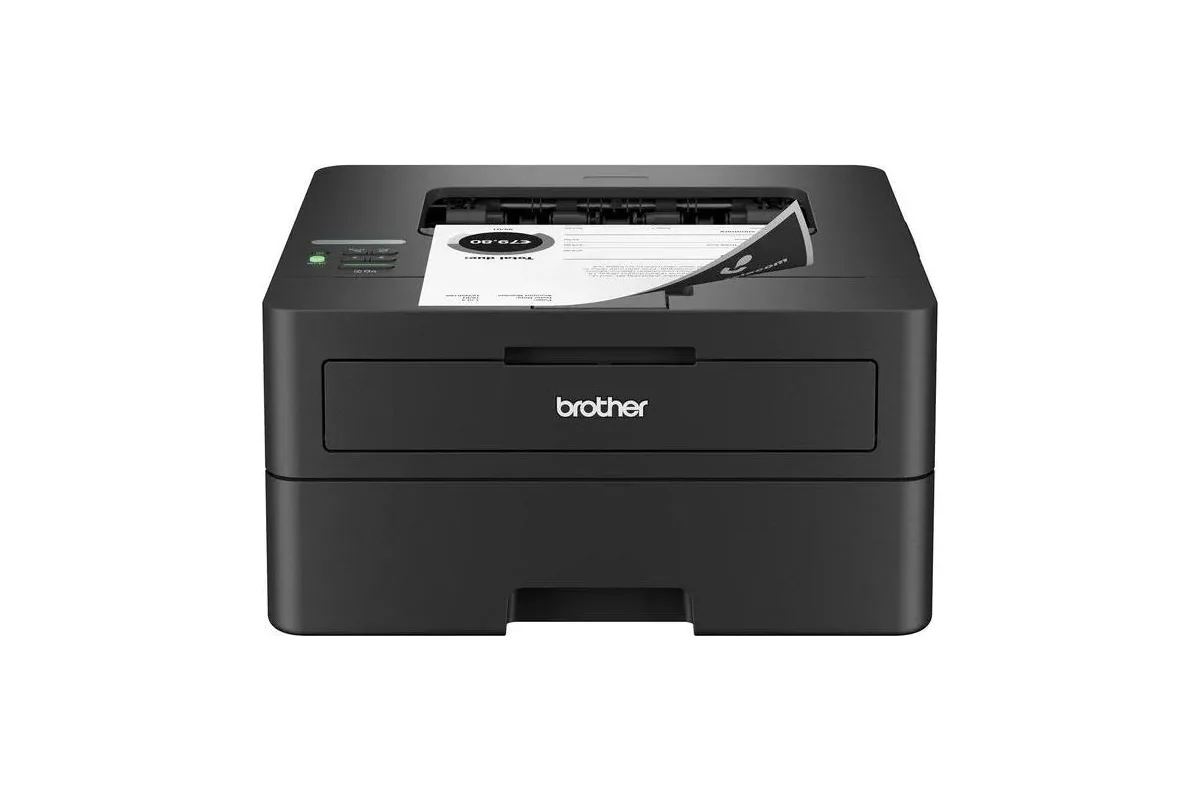
| Brother HL-L2460DW | Yes | Dual-band, 2.4 and 5 GHz | Yes | AirPrint, Mopria |
| Canon MF753Cdw II | Gigabit | 802.11b/g/n; Canon doesn’t list the bands | Yes (“Access Point Mode”) | AirPrint, Mopria; ChromeOS and IPP Everywhere in Canon’s guide |
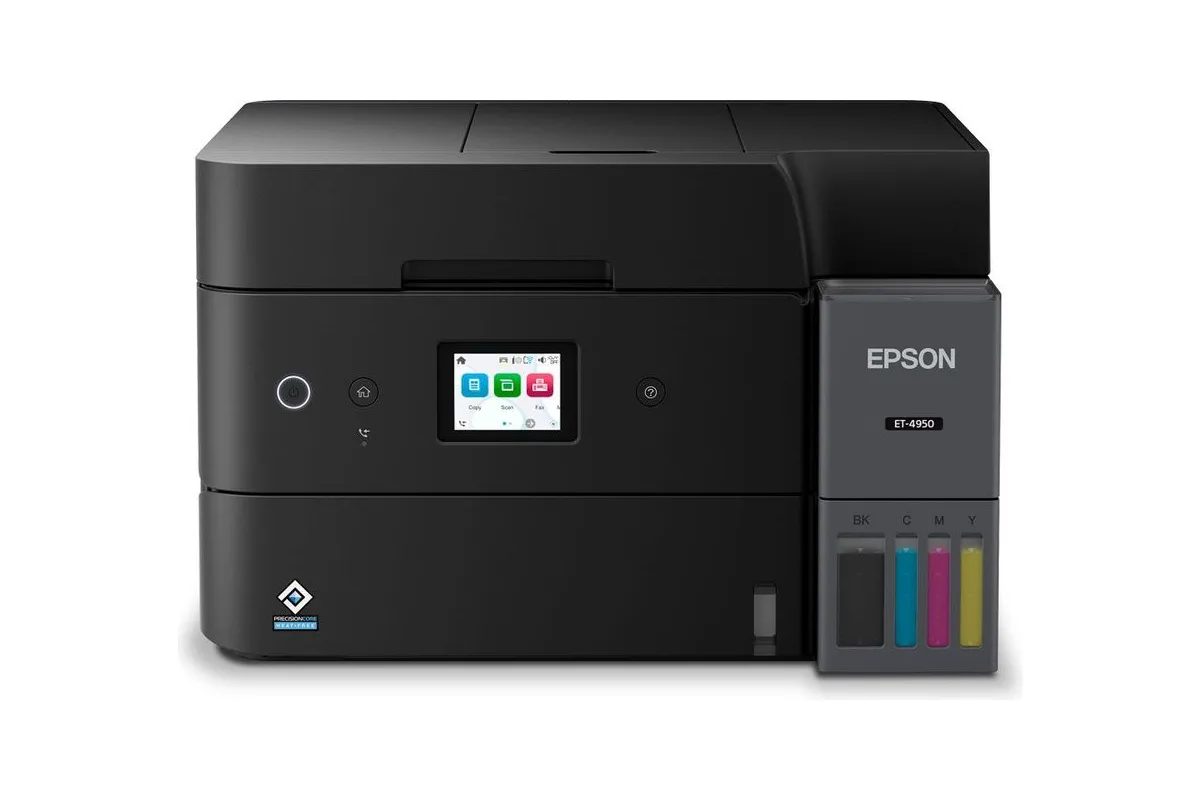
| Epson ET-4950 | 10/100 | Dual-band Wi-Fi 5 | Yes | AirPrint, Mopria; ChromeOS in Epson’s OS list |
| Canon GX7120 | 10/100 | 2.4 and 5 GHz; Wi-Fi and Ethernet can’t run at the same time | Yes | AirPrint, Mopria, Chromebook |
| Brother MFC-L8905CDW | Gigabit | 2.4 GHz only | Yes | AirPrint, Mopria |
2.4 GHz travels farther through walls; 5 GHz is faster and usually less crowded. If your router broadcasts separate network names for each band, put a 2.4 GHz-only printer like the MFC-L8905CDW on the 2.4 GHz one.
Why reserve the printer’s IP address?
Because computers that added the printer by its address lose it when the address changes. Routers hand out addresses that can change after a power cut or a router restart. A DHCP reservation tells the router to give the printer the same address every time, and you set it in the router, not the printer.
You can also type a static IP address into the printer’s network settings. Pick one outside the range your router hands out, or two devices may end up with the same address. The reservation is simpler and keeps all your addresses in one place.
AirPrint and Mopria find printers by name, so phones usually keep working when an address changes. Printers added by IP address on a Mac, Chromebook or Windows PC don’t.
Can employees print from their phones?
Yes, without an app, as long as the phone is on the same network as the printer.
- iPhone and iPad: AirPrint is built in. Apple says AirPrint works “without the need to download or install drivers” and that your device must be on the same Wi-Fi network as the printer. Tap Share, then Print, and pick the printer.
- Android: Printing is built in through Android’s Default Print Service. Mopria says Android is “ready to print – no setup necessary” with a Mopria-certified printer. Every printer here supports Mopria. Mopria Print Service comes installed on many phones.
- Maker apps are optional. Brother Mobile Connect, Canon PRINT and Epson Smart Panel add mobile scanning and printer status. None of the printers here needs one to print. Epson’s Smart Panel pushes you to create an account.
If phones can’t see the printer, check that they aren’t on a guest Wi-Fi network. Guest networks usually keep their devices apart from the rest of your network, so they can’t reach the printer.
How do visitors print without joining your network?
Use Wi-Fi Direct. The printer broadcasts its own small network, and a phone or laptop connects straight to it, with no access to your office network. All the printers in the table support it; Canon calls it Access Point Mode.
If nobody uses it, turn Wi-Fi Direct off in the printer’s settings. It’s one more way into the printer.
How do I add a network printer on a Mac, Chromebook or Windows PC?
Mac: Open System Settings, then Printers & Scanners, then Add Printer, Scanner, or Fax. Network printers that support AirPrint usually appear in the list. To add one by address, click the IP button and enter the IP address. Then pick a protocol: AirPrint, IPP, LPD or HP Jetdirect – Socket. Brother provides no Mac drivers for its business lasers, so the Brother MFC-L5915DW and MFC-L8930CDW print and scan from a Mac through AirPrint.
Chromebook: Google says the Chromebook and printer must be on the same network. Nearby printers appear under available printers in the Chromebook’s printer settings. To add one manually, enter its IP address, choose Internet Printing Protocol (IPP) and use the queue ipp/print. On the Canon MF753Cdw II, Canon’s guide says to turn on IPP Everywhere in the printer’s Remote UI. If you use Canon’s Department ID limits and block unknown IDs, Chromebooks can’t print.
Windows 11: Go to Settings, then Bluetooth & devices, then Printers & scanners, then Add device. If the printer doesn’t appear, add it manually by IP address.
Windows also has a protected print mode, which Microsoft recommends. It works only with Mopria-certified printers. Turning it on uninstalls printers that use the maker’s driver and removes Windows fax and XPS. Features that live in a maker’s driver stop working while it’s on, such as Canon’s PIN-held Secure Print from Windows. Check which ones you rely on before you switch it on.
Which printer is easiest to share in a small office?
One with Gigabit Ethernet, dual-band Wi-Fi and AirPrint, Mopria and ChromeOS support. That’s the Brother MFC-L5915DW for black and white and the Brother MFC-L8930CDW for color. The Canon MF753Cdw II is the color alternative with a three-year warranty. For a home office, the Brother HL-L2460DW or Epson ET-4950 does the same with less volume.
See the best printers for Mac and Chromebook and the best small office printers for more picks.
Questions people ask
Can multiple computers use one printer?
Yes. Once the printer is on the network, every computer, phone and Chromebook on that network can print to it at once. The printer queues the jobs.
Do I need a print server for a small office?
No. Every printer here has its own network connection and queues jobs itself. A print server only helps when you need central control over many printers.
Why does my office printer keep going offline?
Usually because its IP address changed, or its Wi-Fi signal dropped. Reserve its address in your router and, if you can, connect it by Ethernet.
Can I print to an office printer from home?
Not directly. Your phone or laptop has to be on the office network, so you’d need a VPN. Some makers’ cloud apps also offer remote printing, but they need an account and an Internet connection.
Should I turn off Wi-Fi on a printer connected by Ethernet?
Yes, if everyone reaches it through the network anyway. Turning off the Wi-Fi radio and Wi-Fi Direct leaves fewer ways into the printer. On the Canon GX7120 you have to choose one, because Wi-Fi and Ethernet can’t run at the same time.
Sources
- Apple: About AirPrint, support.apple.com
- Apple: Use AirPrint to print from your iPhone or iPad, support.apple.com
- Apple: Add a printer to your printer list on Mac, support.apple.com
- Google: Set up your printer (Chromebook Help), support.google.com
- Mopria print and scan support FAQ, mopria.org
- Microsoft: Windows protected print mode, learn.microsoft.com
- Microsoft: Share a printer as a network printer, support.microsoft.com
- Microsoft: Add or install a printer in Windows, support.microsoft.com
- Brother MFC-L5915DW product page, Brother
- Brother MFC-L5915DW system requirements chart, assets.brother.com
- Brother MFC-L8930CDW product page, Brother
- Brother MFC-L8930CDW system requirements, assets.brother.com
- Brother MFC-L8905CDW product page, Brother
- Brother HL-L2460DW product page, Brother
- Canon Color imageCLASS MF753Cdw II, Canon
- Canon imageCLASS MF753Cdw II user's guide, oip.manual.canon
- Canon MegaTank GX7120, Canon
- Epson EcoTank ET-4950 product page, Epson
- Epson EcoTank Pro ET-5850 product page, Epson
- Epson Smart Panel app, Epson
Keep exploring
Buying guide
The best barcode label printers
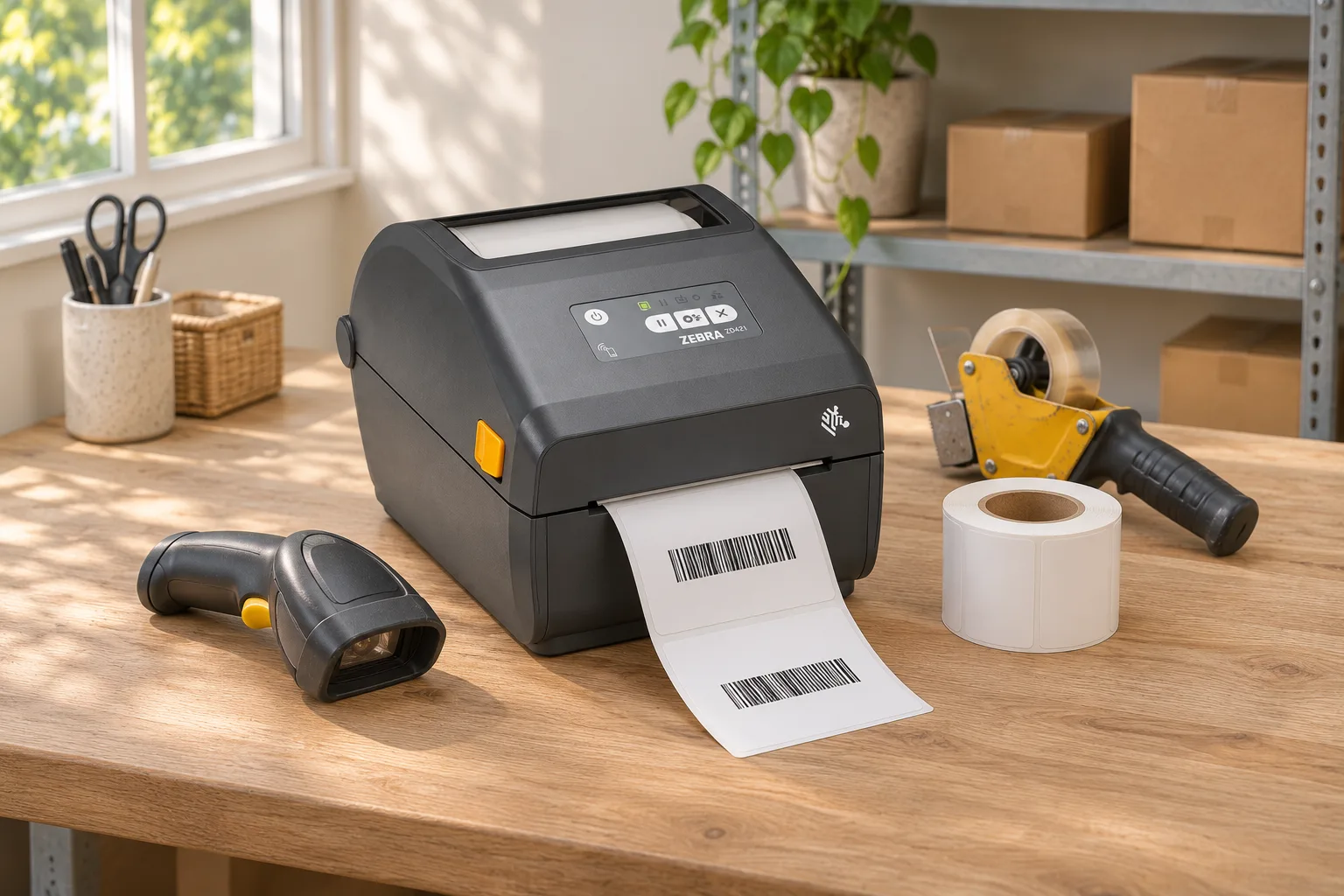
The Zebra ZD421 is the best barcode label printer for most businesses: 4-inch labels at 6 inches a second, any brand of label roll and a 24-month warranty, for about $480 to $526 in November 2026. Get the Brother QL-820NWBc ($229.99) for an office or shop counter, and a thermal transfer model for inventory labels that have to last.
Read story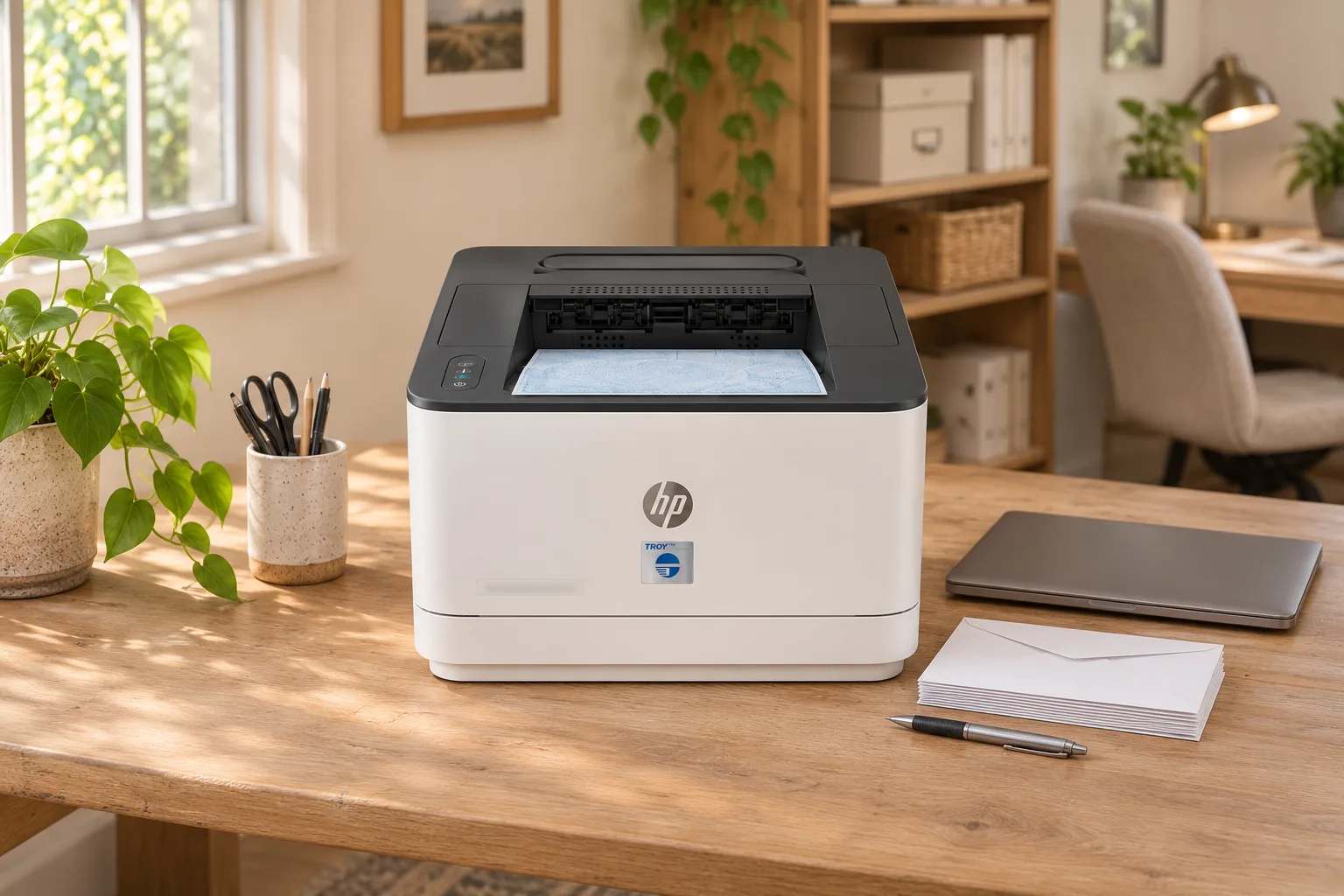
Buying guide
The best check printers for a small business
The TROY 3001dw ($509.15 at TROY, $530 at Amazon in November 2026) is the best check printer for a small business: a 35 ppm Wi-Fi laser with MICR toner, rated for 350 to 2,500 checks a month, at about 5¢ to 7¢ per check three to a page by our estimate. Get the TROY 4001dn for a locking tray, or the VersaCheck M15 MXD ($399.99) for software in the box.
Read story