Printers in this guide
Can you use a Cricut without the internet?
Yes, if you design on a Windows or Mac computer, an iPhone or an iPad, and you get ready while you’re still online. Cricut’s Design Space has an offline mode on those devices: download the images, fonts and projects you want, and you can design, edit and cut with no connection. Android has no offline mode, so a Cricut run from an Android phone or tablet always needs the internet.
Some things never work offline on any device: signing in, installing Design Space, setting up a new machine, updating firmware, uploading your own images, searching for designs and Print Then Cut. Free Cricut images work offline for 7 days in a row, and Cricut Access images for 30 days or until your subscription renews, whichever comes first.
This is a software rule, not a machine rule, so it’s the same on a $99 Joy 2 as on a $349 Maker 5. The one exception is the Cricut Venture, which runs only from a computer.
Which devices work offline?
| Device | Offline cutting? | Notes |
|---|---|---|
| Windows computer (Windows 10 or later) | Yes | Save projects with “Save to Cloud & Computer” |
| Mac (macOS 12 or later) | Yes | Same as Windows |
| iPhone or iPad (iOS 17 or later) | Yes | Cricut’s pages disagree on saving projects offline (see below) |
| Android phone or tablet (Android 11 or later) | No | “An internet connection is required to design, edit, and cut” |
| Chromebook or Linux | No | Design Space isn’t supported at all |
Source: Cricut’s Design Space Offline Feature and System Requirements help articles, read November 28, 2026.
On iOS, Cricut’s general offline article describes saving projects to your iPhone or iPad, and says those projects don’t sync to the cloud on their own. The Maker 5 specifications page says projects on iOS “can only be saved to the cloud”, so you’d need a connection to save your work. If you plan to work offline on an iPad, test saving a project with Wi-Fi off before you depend on it.
Can every Cricut model work offline?
Every current model can, as long as the device running Design Space supports offline mode. Bluetooth and USB connect the machine straight to your computer, phone or tablet, so cutting doesn’t go through your home internet. Cricut’s offline article doesn’t list any exceptions by machine.
| Model | Price, Nov 2026 | Connects by | Offline on Windows or Mac | Offline on iPhone or iPad | Android |
|---|---|---|---|---|---|
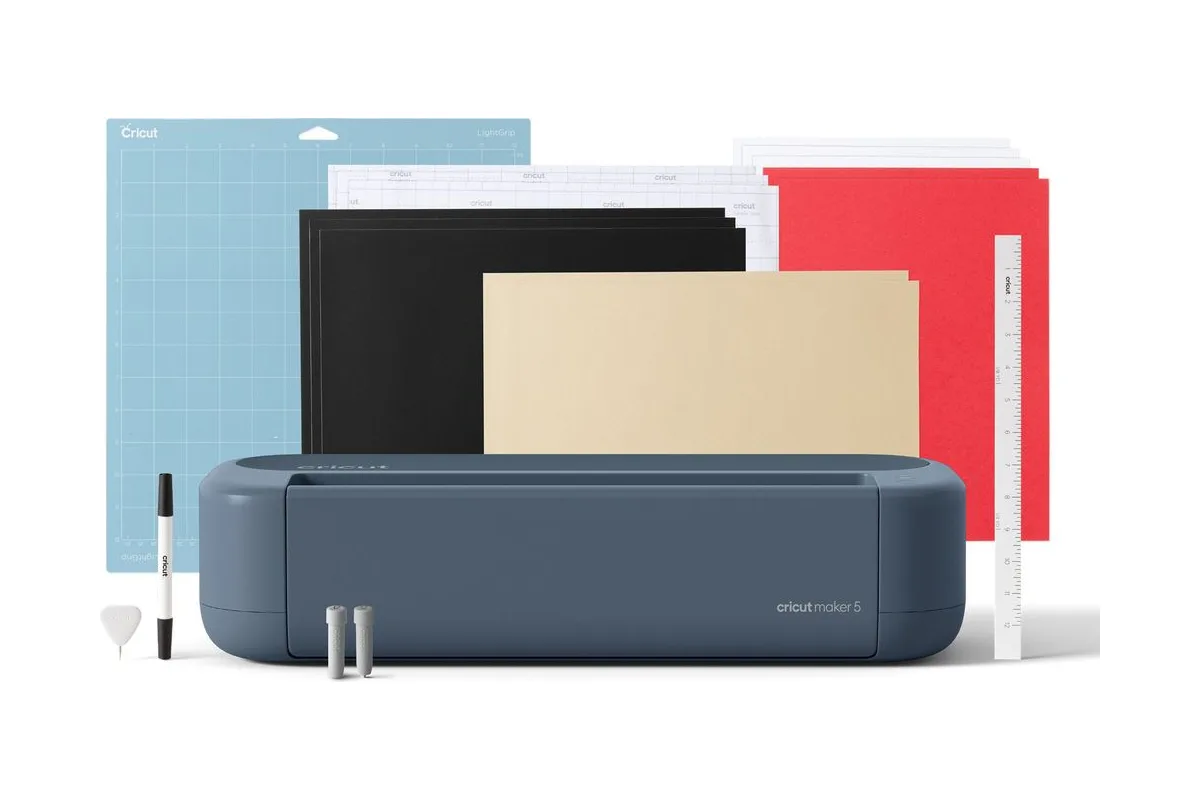
| Maker 5 | $349 (machine) | Bluetooth LE, USB-C (computer only) | Yes | Yes | Always online |
| Maker 4 | $349 (list $399) | Bluetooth, USB-C (computer only) | Yes | Yes | Always online |
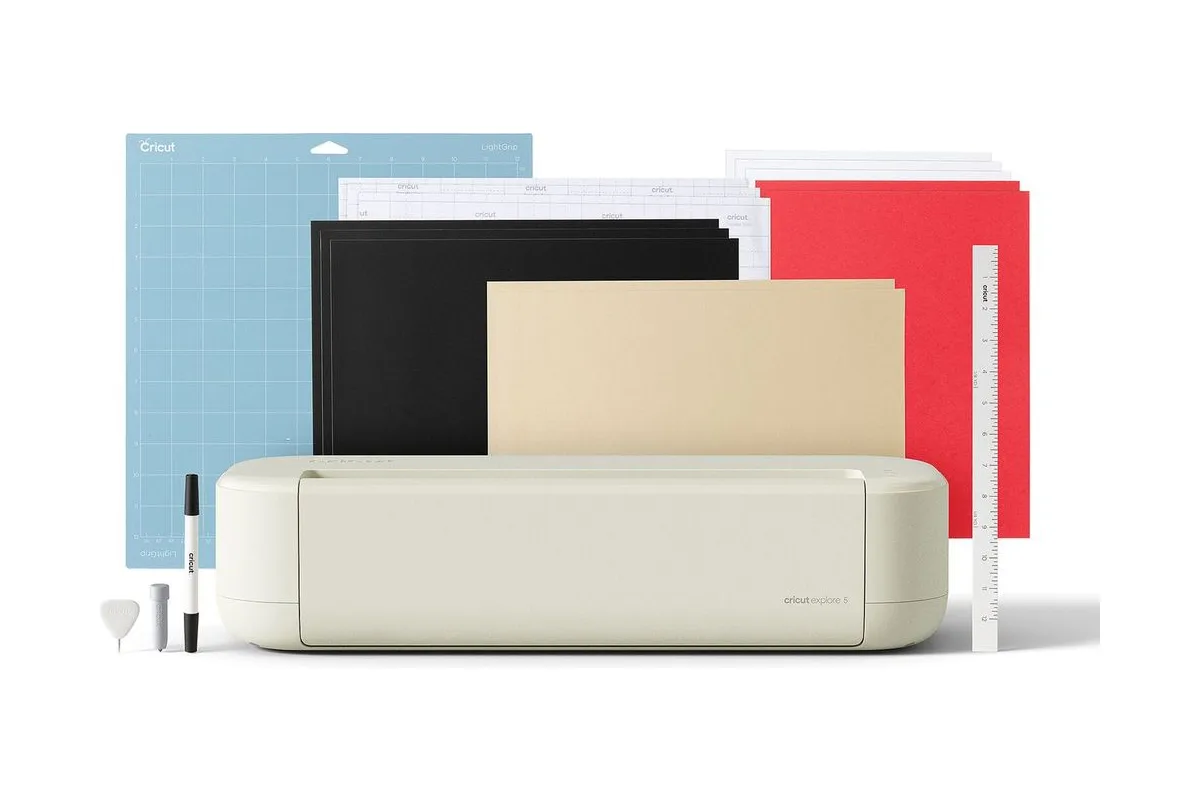
| Explore 5 | $199 (machine) | Bluetooth LE, USB-C (computer only) | Yes | Yes | Always online |
| Explore 4 | $199 refurbished | Bluetooth, USB-C (computer only) | Yes | Yes | Always online |
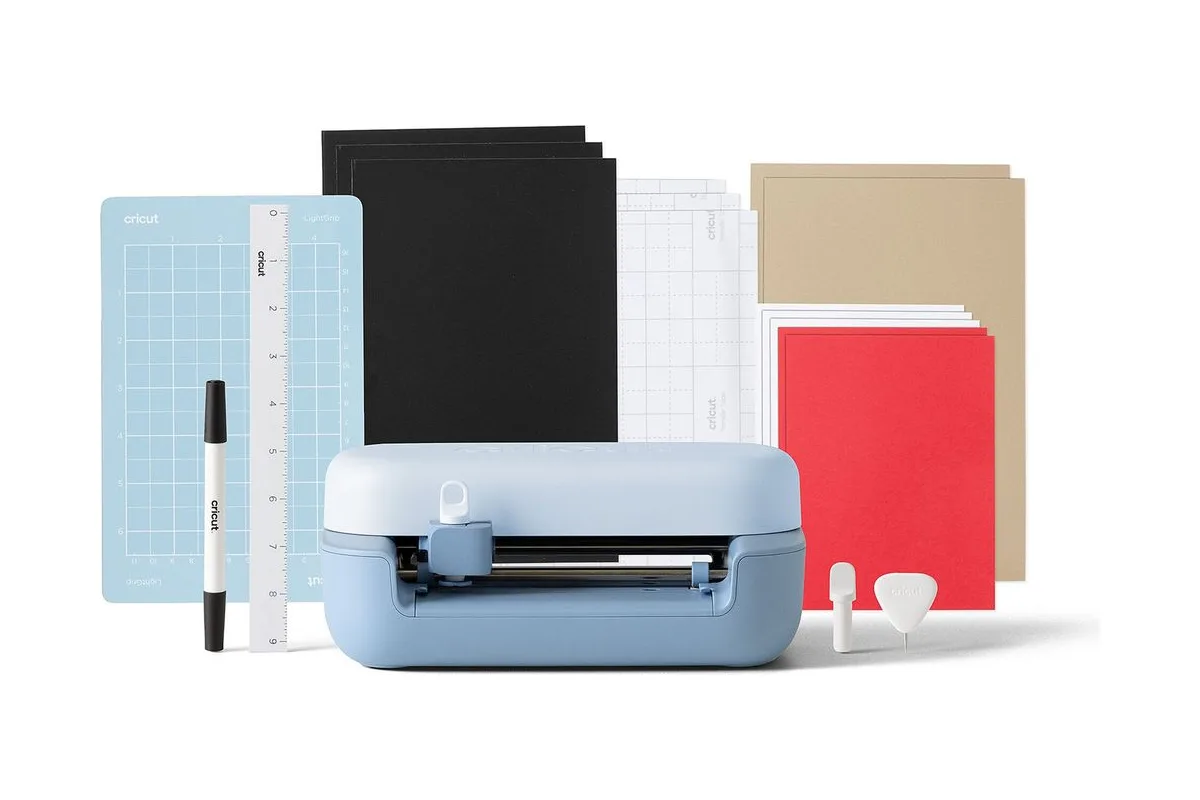
| Joy 2 | $99 (machine) | Bluetooth LE only | Yes, on a computer with Bluetooth | Yes | Always online |
| Joy Xtra | $129 (list $179) | Bluetooth only | Yes, on a computer with Bluetooth | Yes | Always online |
| Venture | $499 (machine) | Bluetooth, USB-C and USB-A | Yes | Not supported | Not supported |
Prices are cricut.com’s in November 2026. Connection details come from each machine’s Cricut product page, quick start guide or FAQ. The Maker 5 and Joy FAQs all say offline making works on Windows, macOS and iOS and not on Android.
Two notes on specific machines:
- Maker 5 and Maker 4: Knife Blade projects already need Design Space for Desktop, and the Maker 5 FAQ adds Foil Transfer projects. Plan those on a computer whether you’re online or not.
- Venture: Cricut says the Venture “is supported on Design Space for Desktop only”. It can only work offline from a Windows or Mac computer.
What can you do offline, and what needs the internet?
| Works offline (after you’ve downloaded it) | Needs the internet |
|---|---|
| Designing and editing with downloaded images, fonts and projects | Signing in to Design Space |
| Cutting, drawing and scoring on a mat or with Smart Materials | Installing Design Space |
| Your system fonts | Setting up a new machine |
| Projects saved to your computer | Firmware updates |
| Cricut Access images for up to 30 days | Uploading your own images, including SVGs |
| Free images, including basic shapes, for up to 7 days in a row | Searching projects and images, the Home page and Collections |
| Print Then Cut, including calibration | |
| Custom Materials settings |
Source: Cricut’s Design Space Offline Feature article and Maker 5 specifications page.
Two of these catch people out. Uploads need a connection, so get your SVG, PNG or JPG files into Design Space before you go offline. And Print Then Cut doesn’t work offline at all, so printed stickers and labels have to wait until you’re back online. If Print Then Cut is your main use, see the best printers for Cricut.
Cricut also says you’ll need to “connect to the internet periodically” to verify a Cricut Access subscription, sync content and keep Design Space up to date. You can’t sign in offline, and if you sign out you’ll need a connection to sign back in and reach your downloaded content.
How do you set up a Cricut to work offline?
- Connect and sign in. Install Design Space, sign in with your Cricut ID and set up the machine while you’re online. A brand-new machine can’t be set up offline.
- Update the firmware while you’re connected.
- Upload your own files you’ll want to cut.
- Download the images, fonts and projects you’ll use. Cricut says images download one at a time.
- Save projects to your device. On a computer, choose “Save to Cloud & Computer” rather than “Save to Cloud Only”.
- Reconnect within 7 days if you’re using free images, or within 30 days (or before your renewal date) for Cricut Access images.
If you have no home internet, any connection works for the online steps, including a phone hotspot. Cricut lists a minimum of 2–3 Mbps download and 1–2 Mbps upload.
Does a Silhouette work offline better than a Cricut?
Yes, a little. Silhouette Studio, the free software for Silhouette cutters, works offline and keeps anything you downloaded and synced while connected, with no 7- or 30-day limit stated. It needs the internet only to download and update the software, activate paid upgrades and get new Design Store purchases. Cricut’s offline mode is real, but its time limits, the Android gap and the online-only uploads and Print Then Cut are the trade-offs. See Cricut Design Space vs Silhouette Studio and the best cutting machines without a subscription.
Questions people ask
Can you use a Cricut without Wi-Fi?
Yes, on a Windows or Mac computer, iPhone or iPad, once you’ve signed in and downloaded your designs. The machine connects to your device by Bluetooth or USB, not through Wi-Fi. Android needs an internet connection the whole time.
Can you use Cricut Design Space offline on Android?
No. Cricut says offline mode “is not available on Design Space for Android devices”. You need an internet connection to design, edit and cut from Android.
How long can you use Cricut offline?
Free images work offline for up to 7 consecutive days. Cricut Access images work offline for 30 days or until your subscription renews, whichever comes first. After that you have to reconnect.
Can you upload SVG files offline in Design Space?
No. Uploading images needs an internet connection. Upload your files while you’re online, and you can cut them offline later.
Does Print Then Cut work offline?
No. Print Then Cut projects and Print Then Cut calibration both need an internet connection.
Do you need Cricut Access to work offline?
No. Offline mode works with a free account, using Cricut’s free images, your uploads and your system fonts. Access images just stay available offline longer (30 days against 7). See do you need Cricut Access?
Can you use a Cricut without a computer?
Yes, with the Design Space app on a phone or tablet, on every current Cricut except the Venture. See how to use a Cricut without a computer.
Sources
- Cricut Help: Design Space Offline Feature, help.cricut.com
- Cricut Help: System Requirements, Design Space, help.cricut.com
- Cricut Help: Cricut Maker 5 specifications and requirements, help.cricut.com
- Cricut Help: Cricut Maker 5 frequently asked questions, help.cricut.com
- Cricut Help: Cricut Explore 5 Quick Start Guide, help.cricut.com
- Cricut Help: Cricut Maker 4 Quick Start Guide, help.cricut.com
- Cricut Help: Cricut Explore 4 Quick Start Guide, help.cricut.com
- Cricut Help: Cricut Joy 2 Quick Start Guide, help.cricut.com
- Cricut Help: Cricut Joy Xtra Quick Start Guide, help.cricut.com
- Cricut Help: How to upload images into Design Space, help.cricut.com
- Cricut Venture product page, cricut.com
- Silhouette Support: Software Overview, silhouetteamerica.freshdesk.com
Keep exploring
Buying guide
The best Cricut machines: which Cricut should you buy?
The Cricut Explore 5 is the best Cricut for most people: 12-inch cuts, 12-foot matless runs and tabloid Print Then Cut for $199 at Cricut in November 2026, machine alone or as the Essential Bundle. Buy the $349 Maker 5 for wood, leather and fabric, the $99 Joy 2 or $129 Joy Xtra for small projects, and the $499 Venture for a vinyl business.
See the picks
Buying guide
The best cutting machines for beginners
The Cricut Explore 5 is the best cutting machine for beginners: the Essential Bundle is $199 in November 2026, the same as the machine alone, and it cuts 12-inch vinyl, iron-on and cardstock, scores cards and prints and cuts tabloid sticker sheets. The Joy Xtra ($129) suits small desks; the Silhouette CAMEO 5α ($279.99) skips subscriptions.
See the picks
Buying guide
The best cutting machines for cardstock and paper crafts
The Cricut Explore 5 is the best cutting machine for cardstock and paper crafts: a Scoring Tool in the box, card mats, Print Then Cut on tabloid sheets and 14.1-inch-a-second cuts, for $199 in November 2026 (the Essential Bundle with a 2-Card Mat is also $199). The Cricut Maker 5 ($349) adds debossing, perforation and the Knife Blade for chipboard; the Joy 2 ($99) is the budget card maker.
See the picks
How to
Can you use any vinyl with a Cricut?
Yes. Every Cricut cuts other brands of adhesive vinyl and heat transfer vinyl, such as Oracal 651 and Siser EasyWeed, as long as you put them on a cutting mat. Only Cricut's Smart Materials cut without a mat. Oracal 651 costs $0.51 to $0.67 a square foot against $2.25 for Cricut Premium Vinyl.
Read the guide